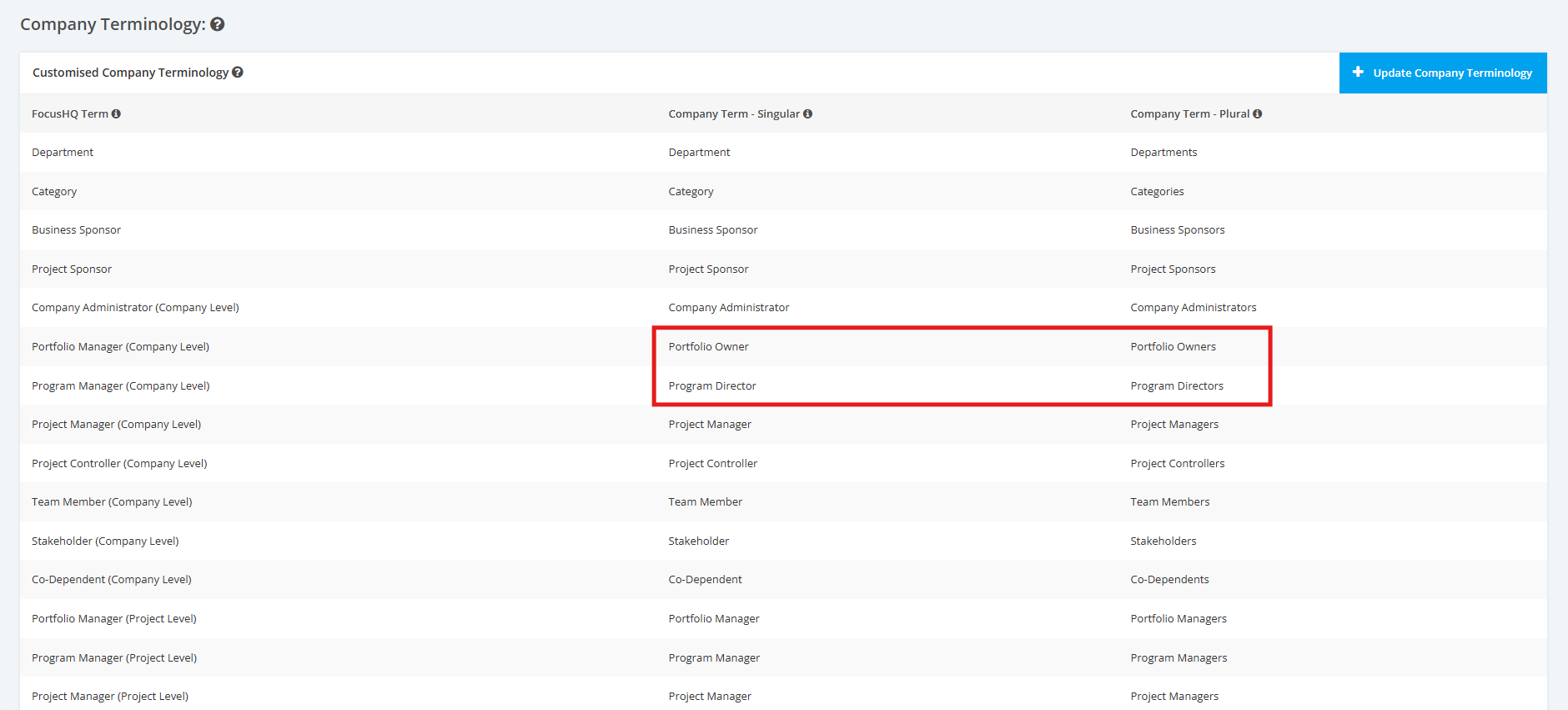
1. Manage Company Terminology
- To manage Company Terminology in the Company Profile Settings, open the FOCUS™ platform using this link: https://app.projectfocushq.com/accounts/login/.
- Login using your ‘Username’ and ‘Password’ and click the ‘Log-in’ button.
- Once logged in you will reach the Company’s Homepage. Go to the Top Navigation, hover over your ‘Company Name’ then click on the ‘Edit’ icon as shown below. Once done, you will reach the Company Profile.
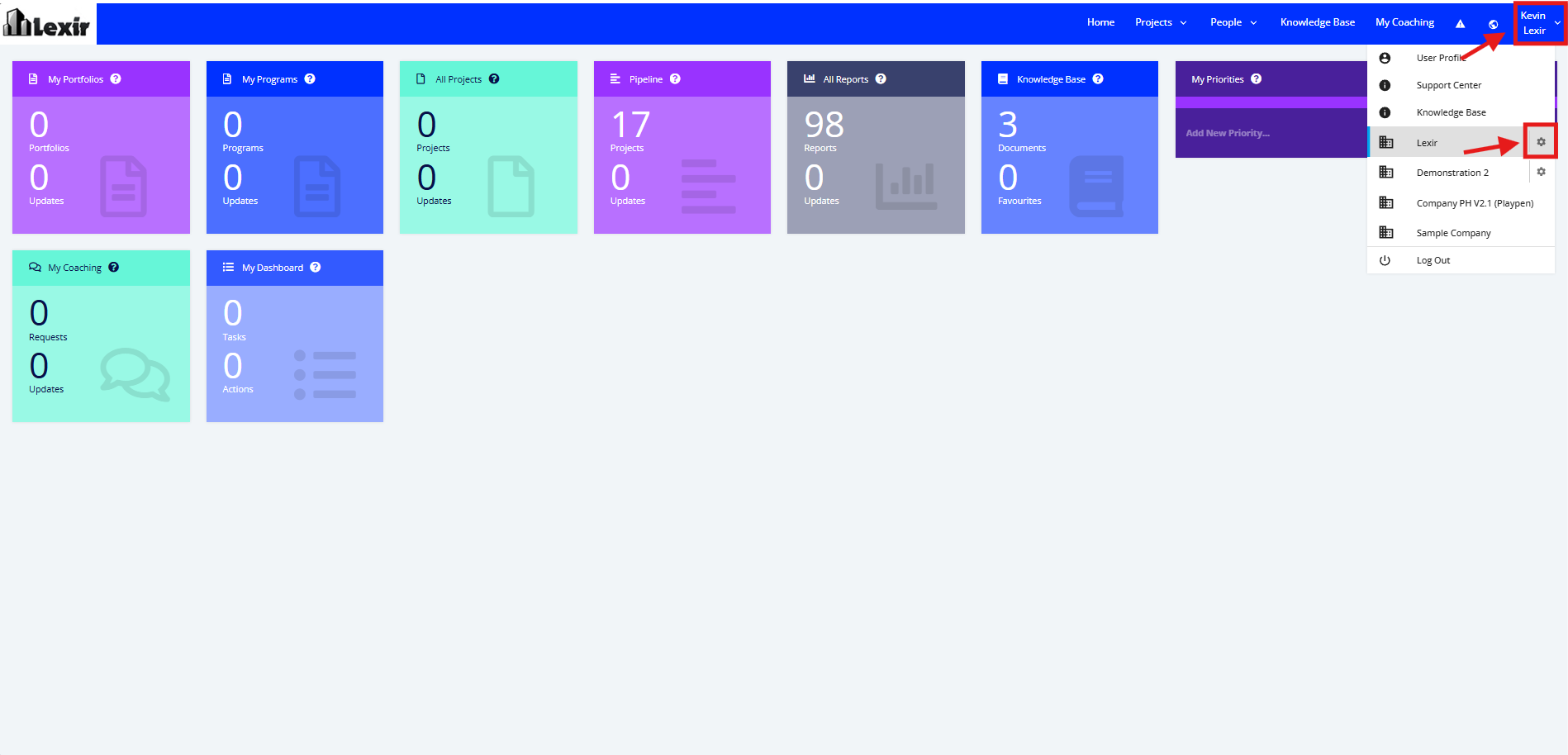
Note: Only Users with access to the Company Profile can edit this page.
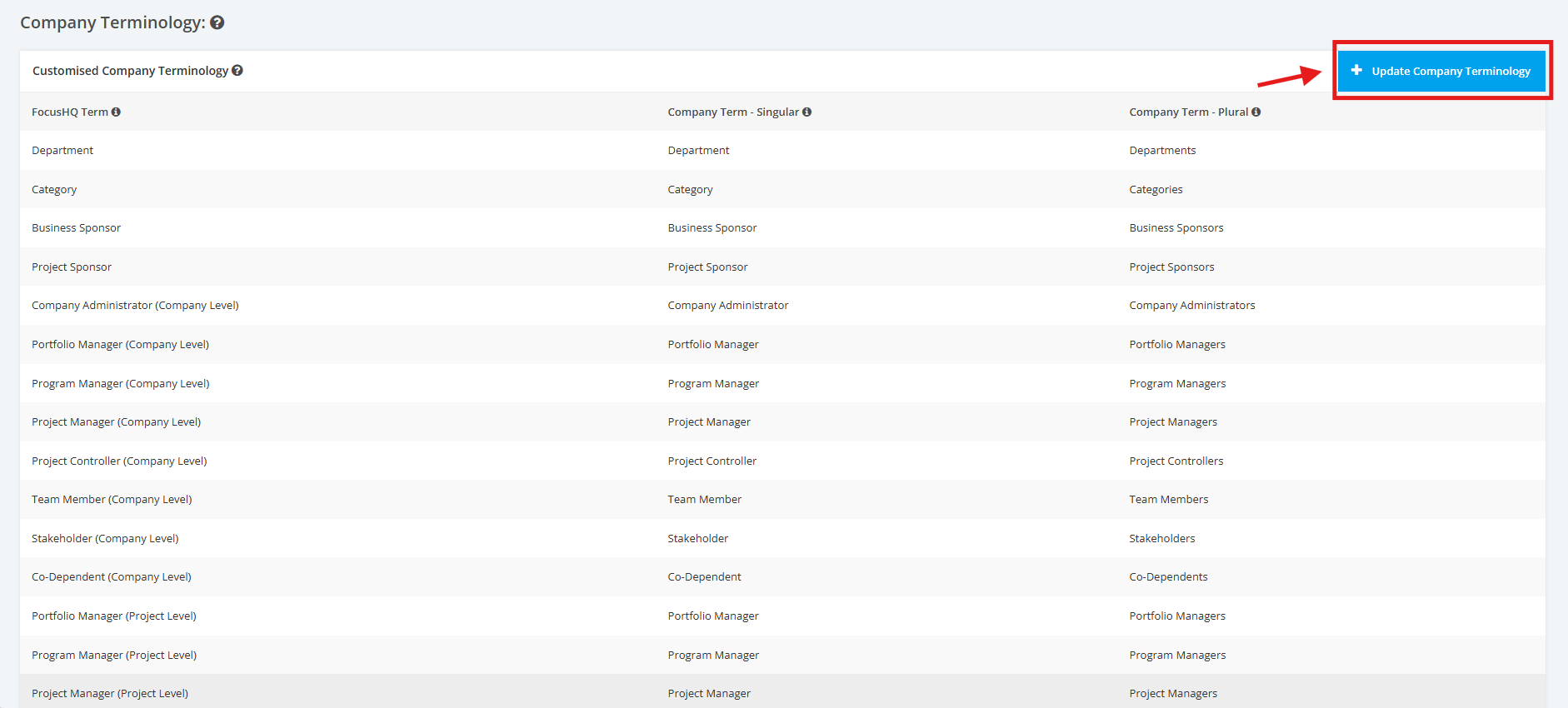
1. In the Company Profile page, scroll down to the Company Terminology section. A list of FOCUS™ terms that can be updated are displayed. To update FOCUS™ terms, click the Update Company Terminology button.
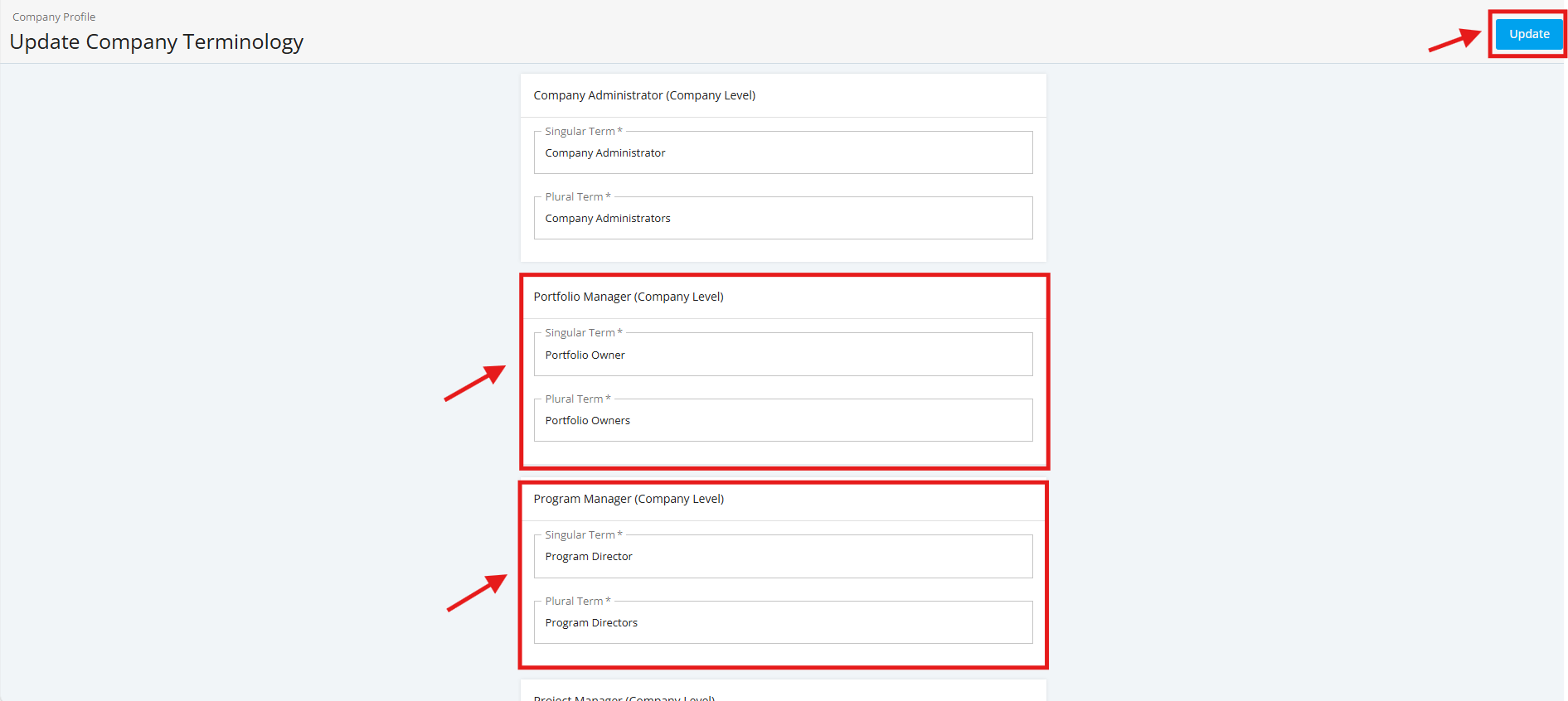
2. Scroll down for the FOCUS™ terms to be updated and input the new name for the term in Singular and Plural Form.
These are the following FOCUS™ terms that can be updated:
- Department
- Category
- Business Sponsor
- Project Sponsor
- Company Administrator (Company Level)
- Portfolio Manager (Company Level)
- Program Manager (Company Level)
- Project Manager (Company Level)
- Project Controller (Company Level)
- Team Member (Company Level)
- Stakeholder (Company Level)
- Co-Dependent (Company Level)
- Portfolio Manager (Project Level)
- Program Manager (Project Level)
- Project Manager (Project Level)
- Project Controller (Project Level)
- Team Member (Project Level)
- Stakeholder (Project Level)
- Co-Dependent (Project Level)
Once through, click the Update button.
3. The updated FOCUS™ terms should be successfully displayed in the Company Terminology table. These should also be reflected across the platform.