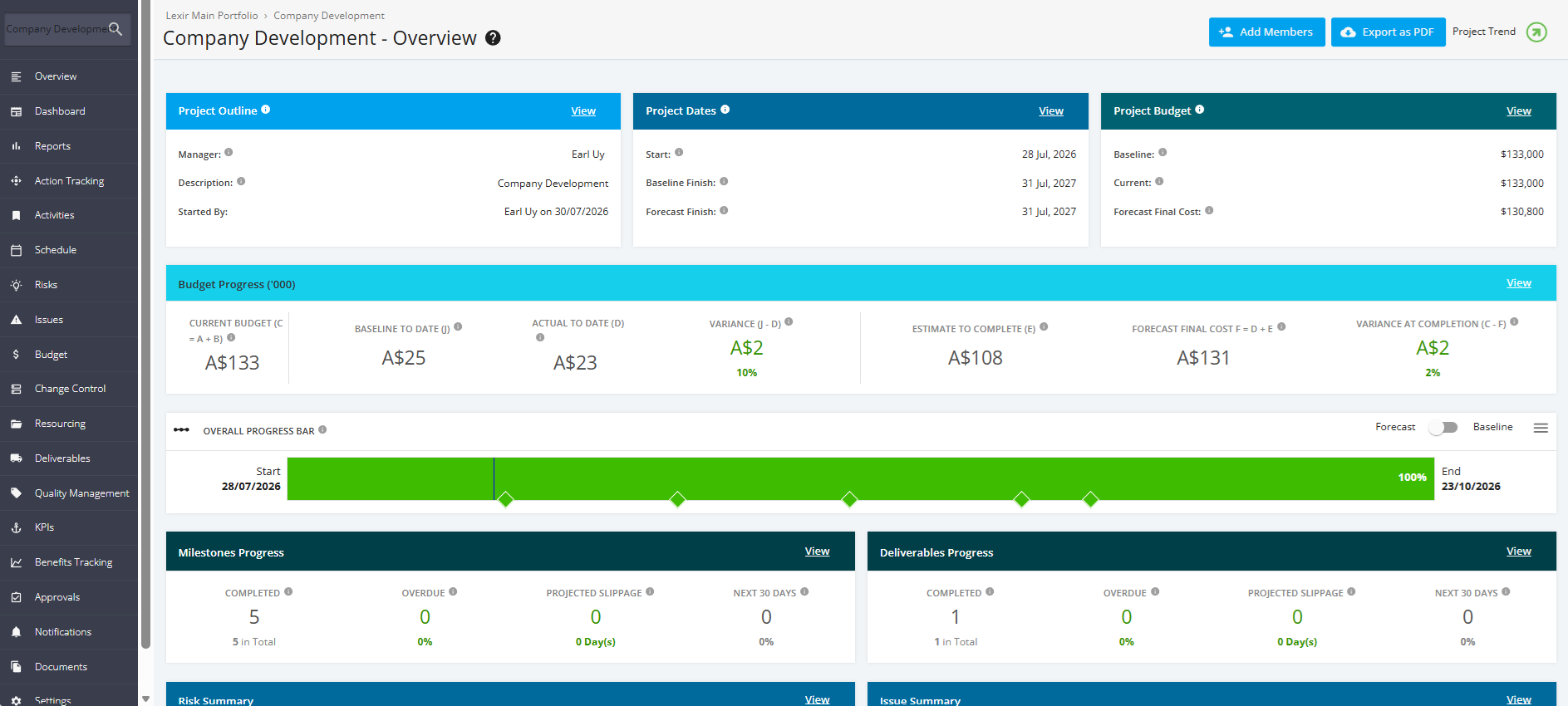
1. Video
You can check the video for a walkthrough on moving a Project from Execution to Benefits Tracking.
2. Review and Approve Project to Move to Benefits Tracking Phase
Note: User must be a Project End: Initiator/ Project End: Approver in Company Settings to move Projects to Benefits Tracking Phase
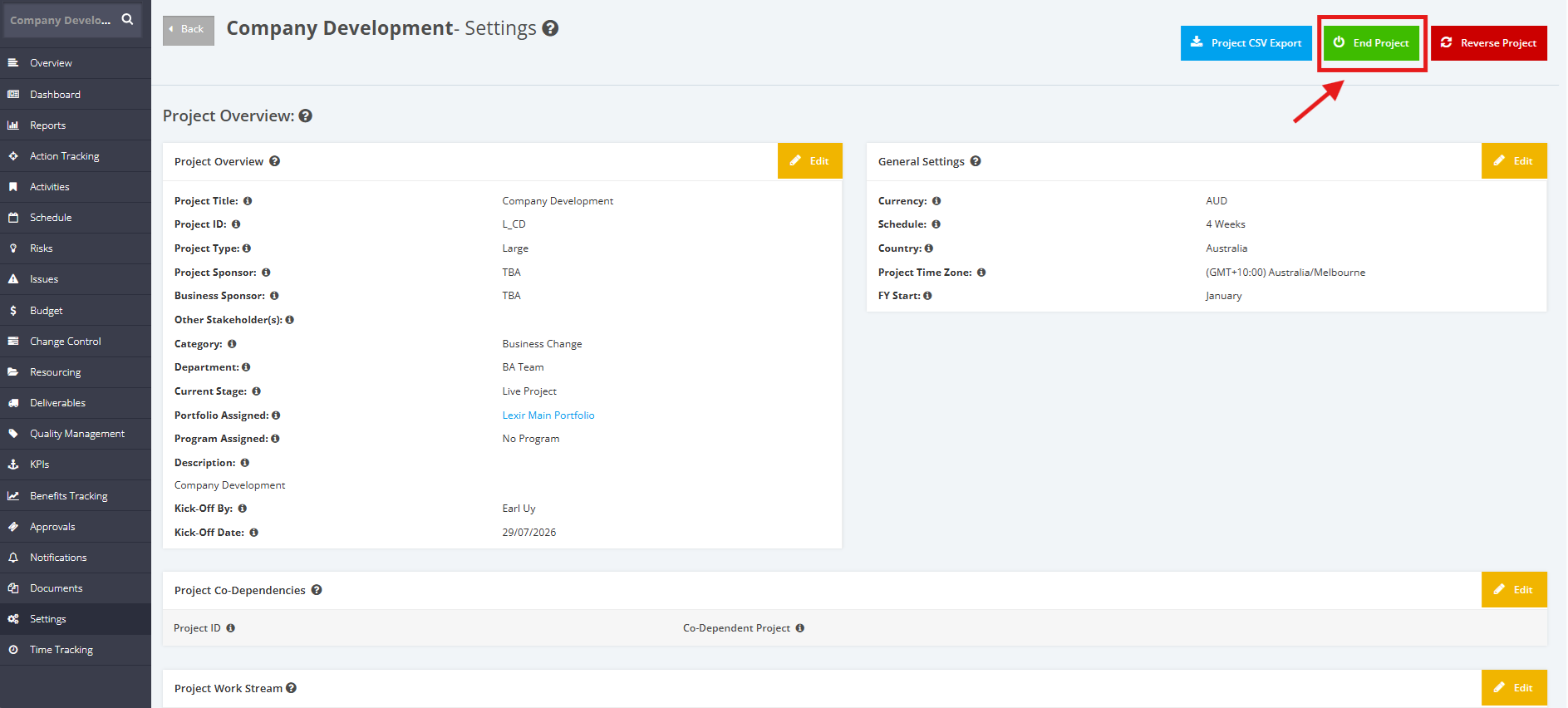
1. Go to the Project’s ‘Settings’ Module in the left side bar. Once done, click the “End Project” button located at the upper-right part of the webpage. The ‘End Review’ page will be added/displayed at the top of the left-side bar.
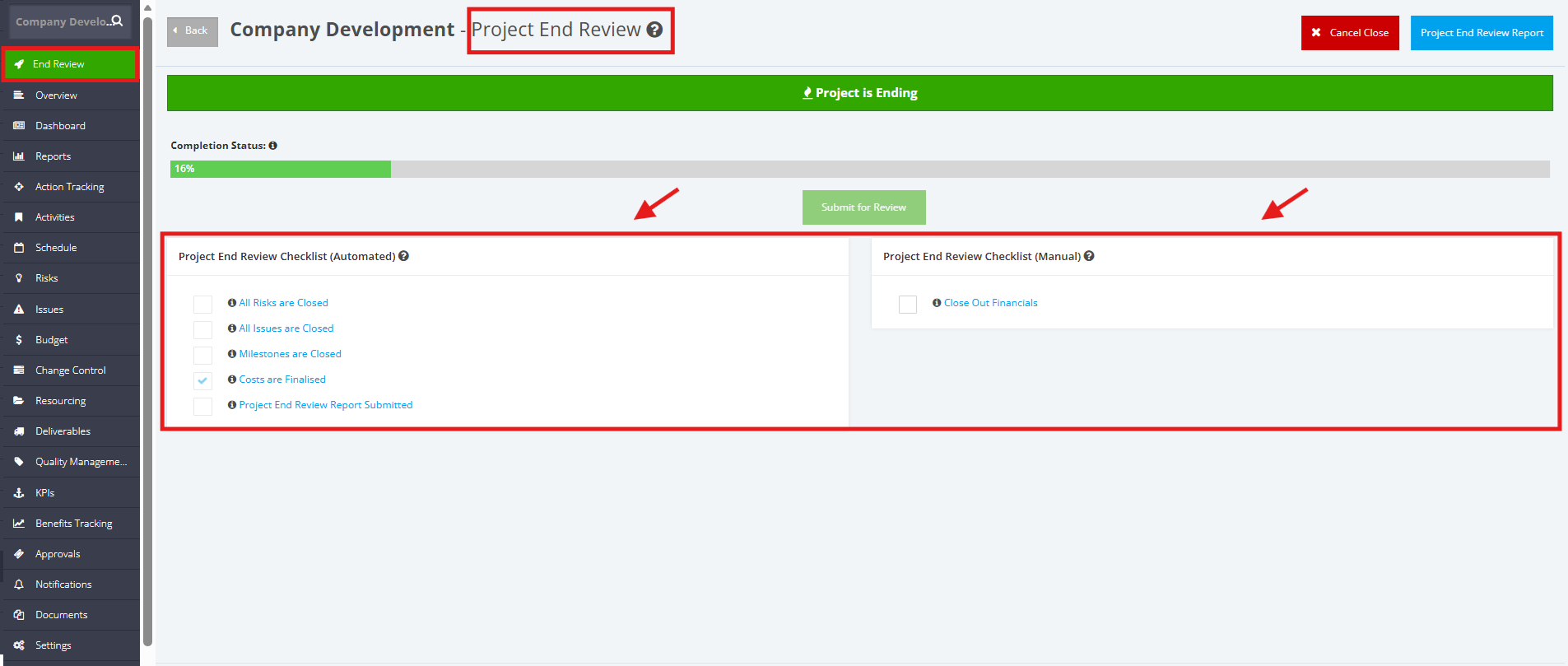
2. From the 'End Review' set-up page, complete the ‘Manual’ and ‘Automated’ Project End Review Checklist.
For the ‘Manual’ checklist, the tick-box should be selected.
While for the ‘Automated’ checklist, the 'Project End: Initiator' must complete the ‘Project End Review Checklist’ to allow 'Project End: Approver' to review and Approve Project.
- All Risks are Closed – All risks must be resolved
- All Issues are Closed – All issues must be resolved
- Milestones are Closed – All Milestones must be completed
- Costs are Finalised – All Actual Costs must be updated
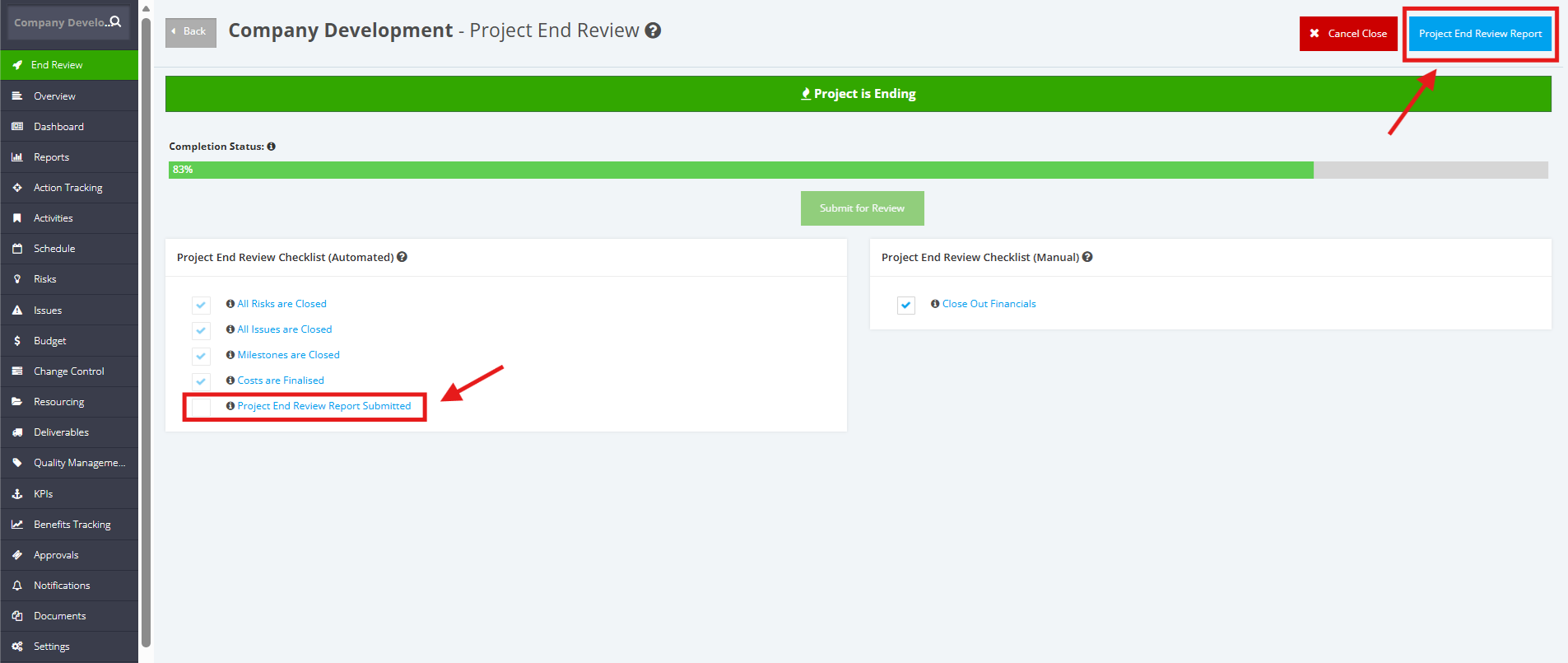
3. After all 'Automated' and 'Manual' checklists are completed, the “Project Close Out Report” button becomes enabled.
Open a Close Out Report by either clicking the "Project End Review Report" button or the “Project End Review Report Submitted” link.
4. Fill-in the Project End Review Report with your comments/notes about what area in the Project was difficult to execute, what were Perfect/Good, and/or any changes you suggest in the future.
After you’ve updated the Project End Review Report, click “Submit Report” button to send a Final End Review Report. But if you still intend to do future changes, you may click the “Save Draft” button.
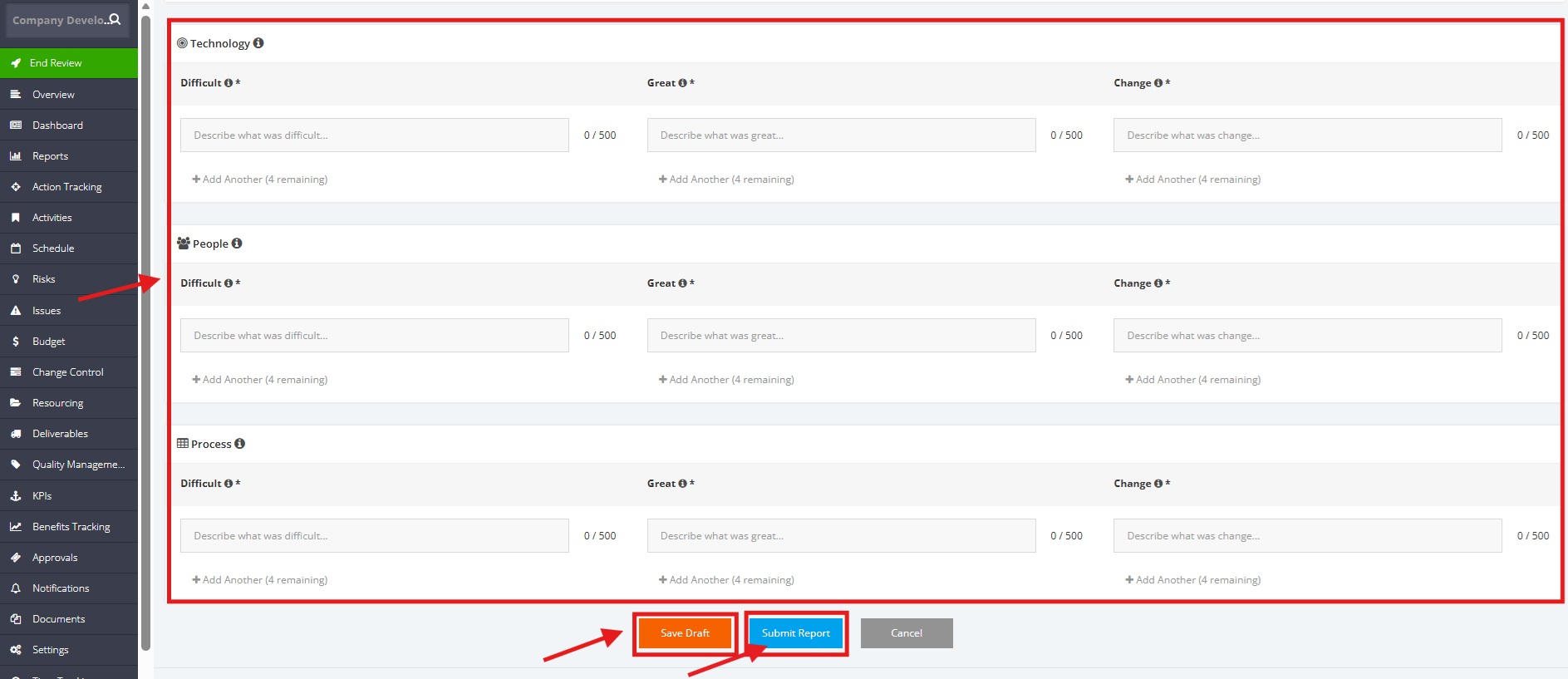
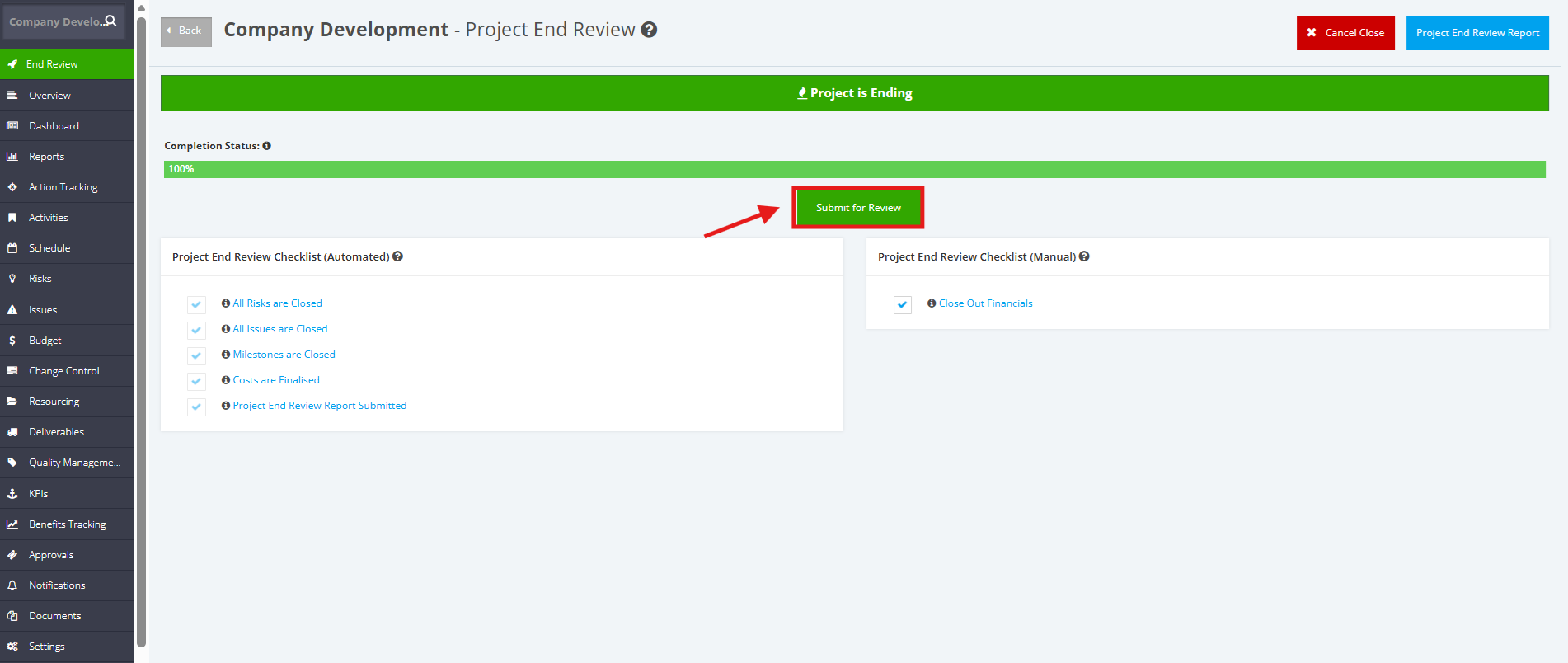
5. After a Close Out Report is submitted, “Project End Review Report” becomes completed and checkbox is automatically ticked. The Completion Status Bar becomes 100% thus making the “Submit for Review” button enabled.
Click the “Submit for Review” button.
6. After Submitting for Review, the project can now be approved by clicking the 'Approve' button.
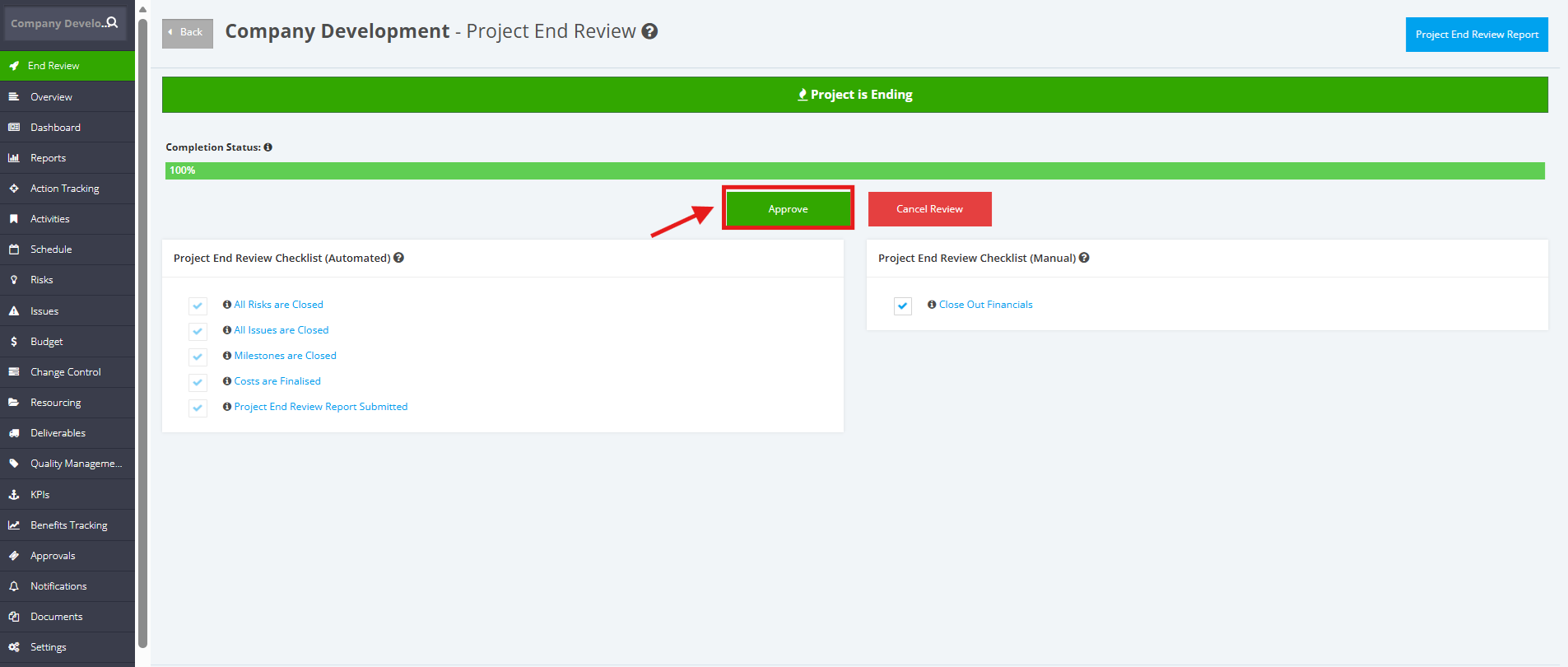
7. The project is now Reviewed and Approved and is in Benefits Tracking (Phase 5) stage.
NOTE: For Projects with NO Benefits Tracking module, Projects will be directly Closed Out and will be in the Closing Stage.