1. Portfolio Default Settings – Manage Monthly Report Template
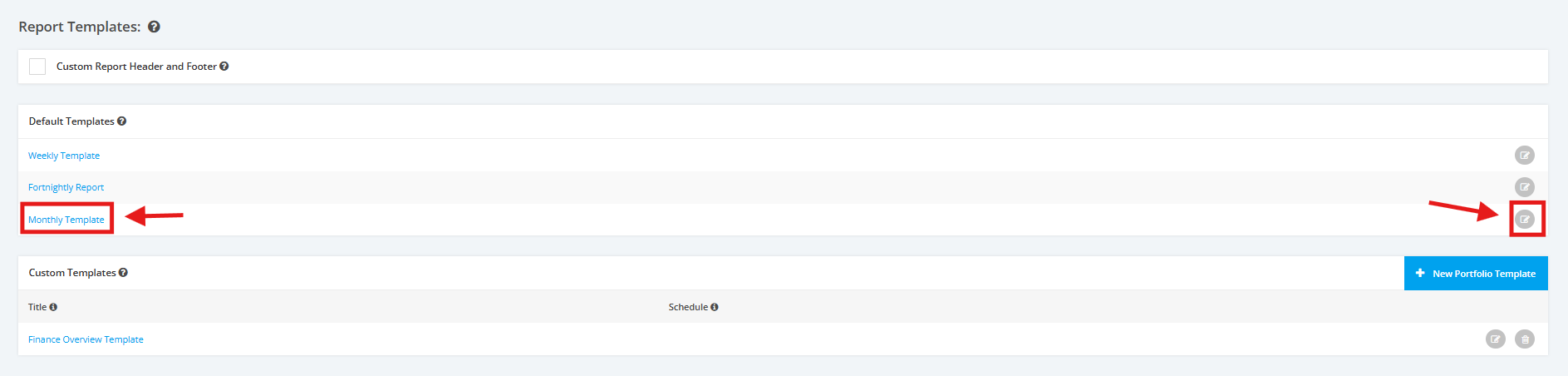
1. Within the Portfolio Report Settings, scroll to the ‘Report Templates’ section then ‘Default Templates’. Click on the ‘Monthly Report’ link or the edit icon to manage the Monthly Report Template.
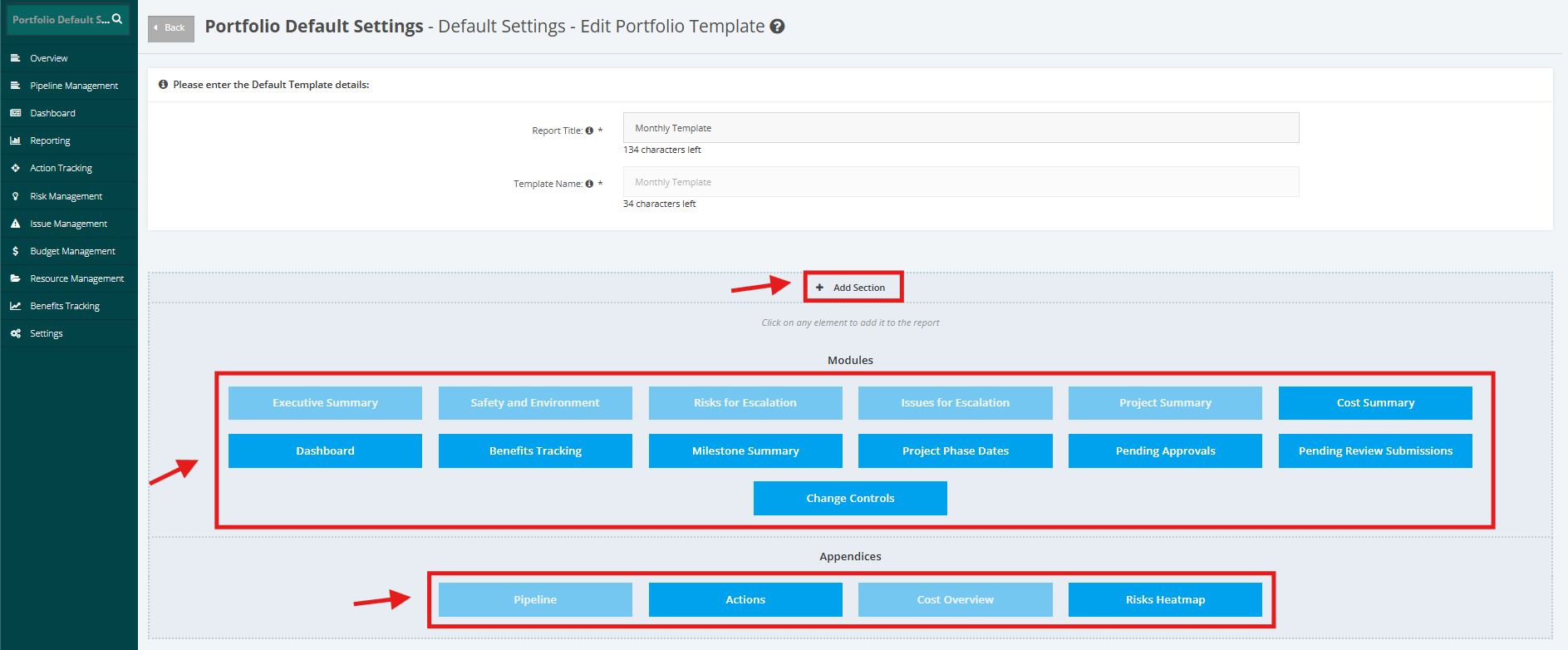
2. To add more elements in the Report, click ‘+Add Section’. Once done, select desired ‘Modules’ and ‘Appendices’ to add.
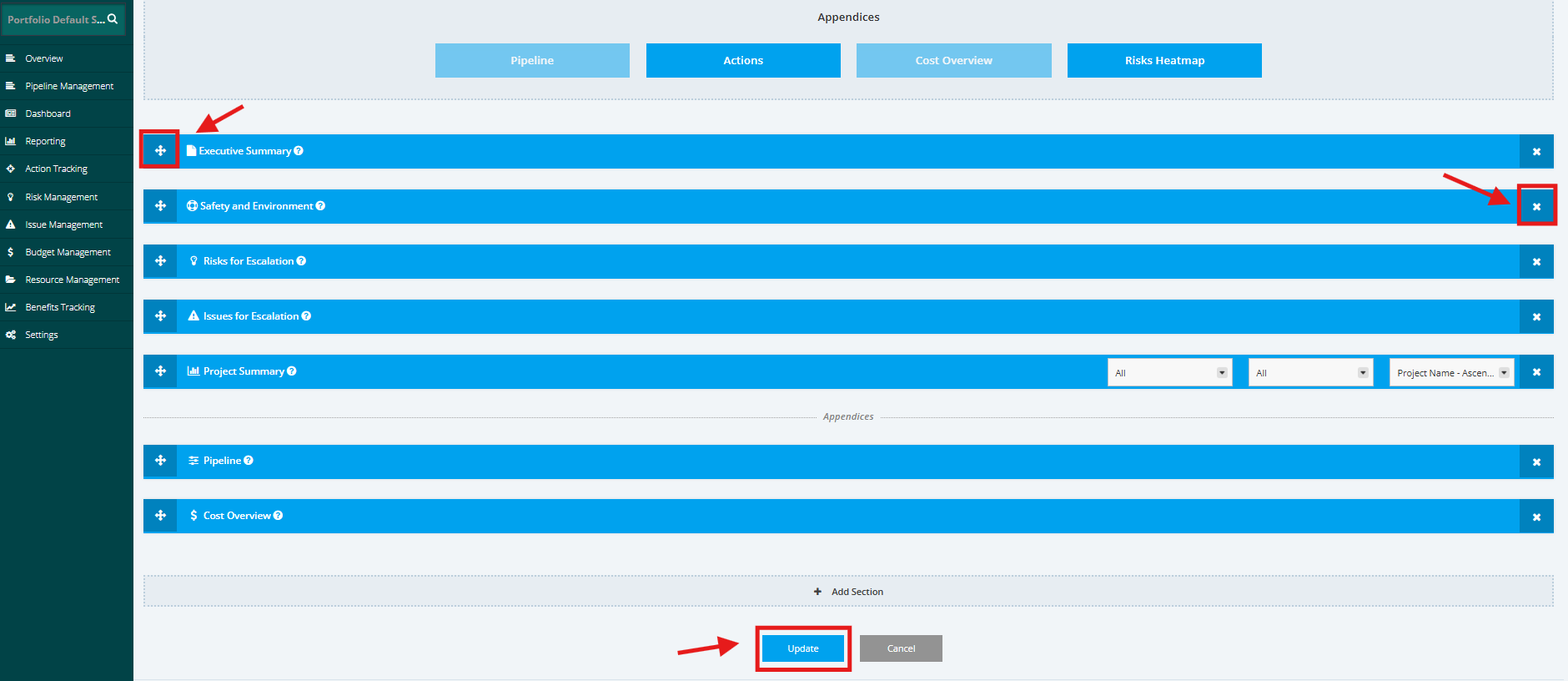
3. If you want to remove a Report section, click the ‘x’ button and if you to re-arrange the Report sections move the Drag and Drop ‘+’ button.
Once done, click the ‘Update’ button to save the changes.