1. Portfolio Default Settings – Add a Custom Report Template
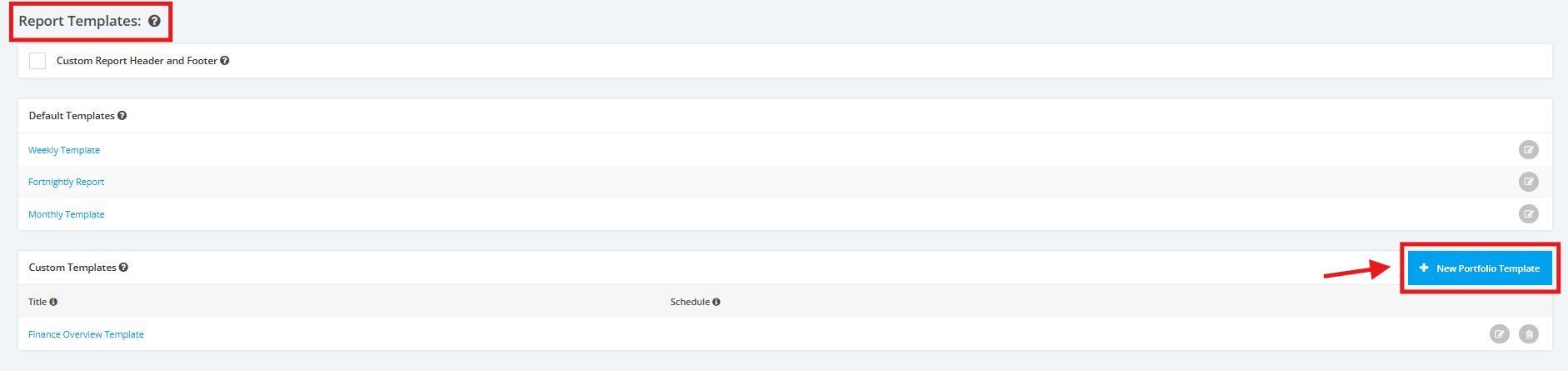
1. Within the Portfolio Default Settings page, scroll to the ‘Report Templates’ section then ‘Custom Templates’. Click the ‘+ New Template’ button to add a custom template.
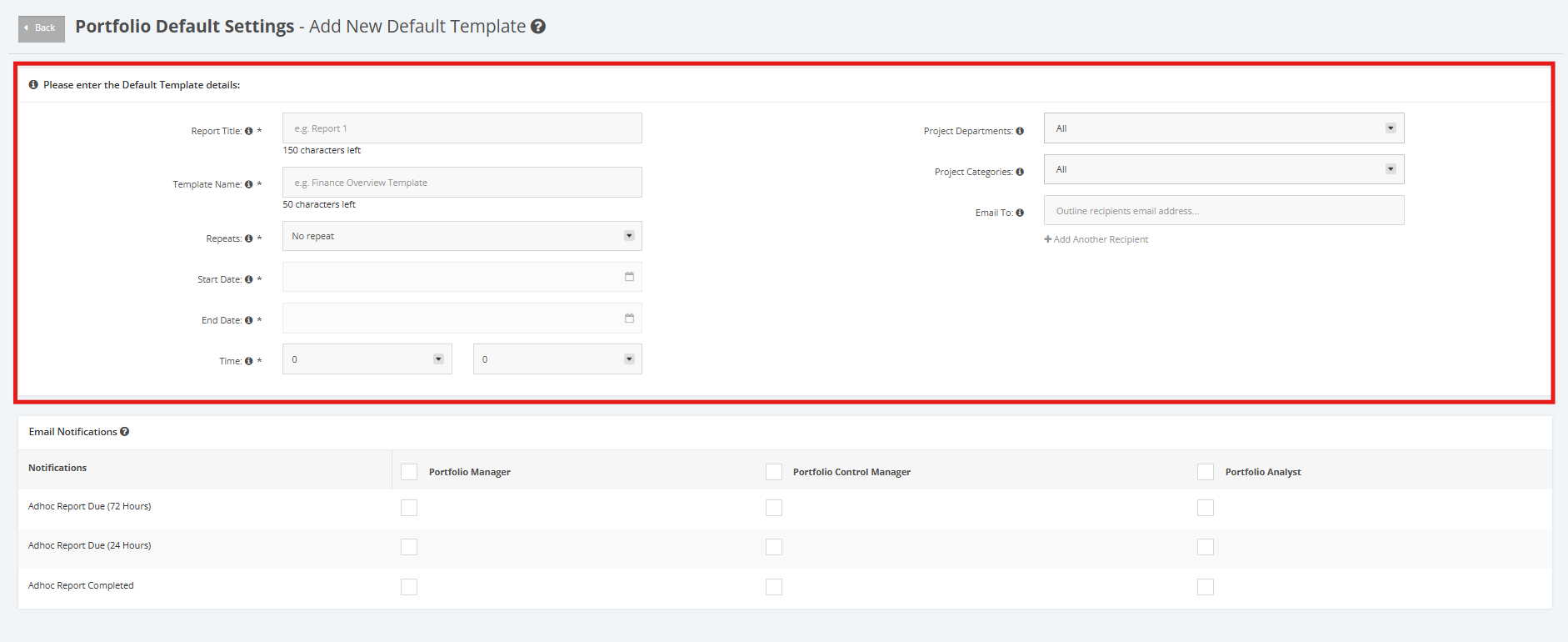
2. Set the ‘Report Title’, ‘Template Name’, ‘Repeats’, ‘Start Date’, ‘End Date’, ‘Time’, ‘Work Stream’ and ‘Email To’ to complete template details.
Template details contain sections of the Portfolio that you want to be displayed on the Report. It is important to add any piece that helps further explain the report or adds additional context.
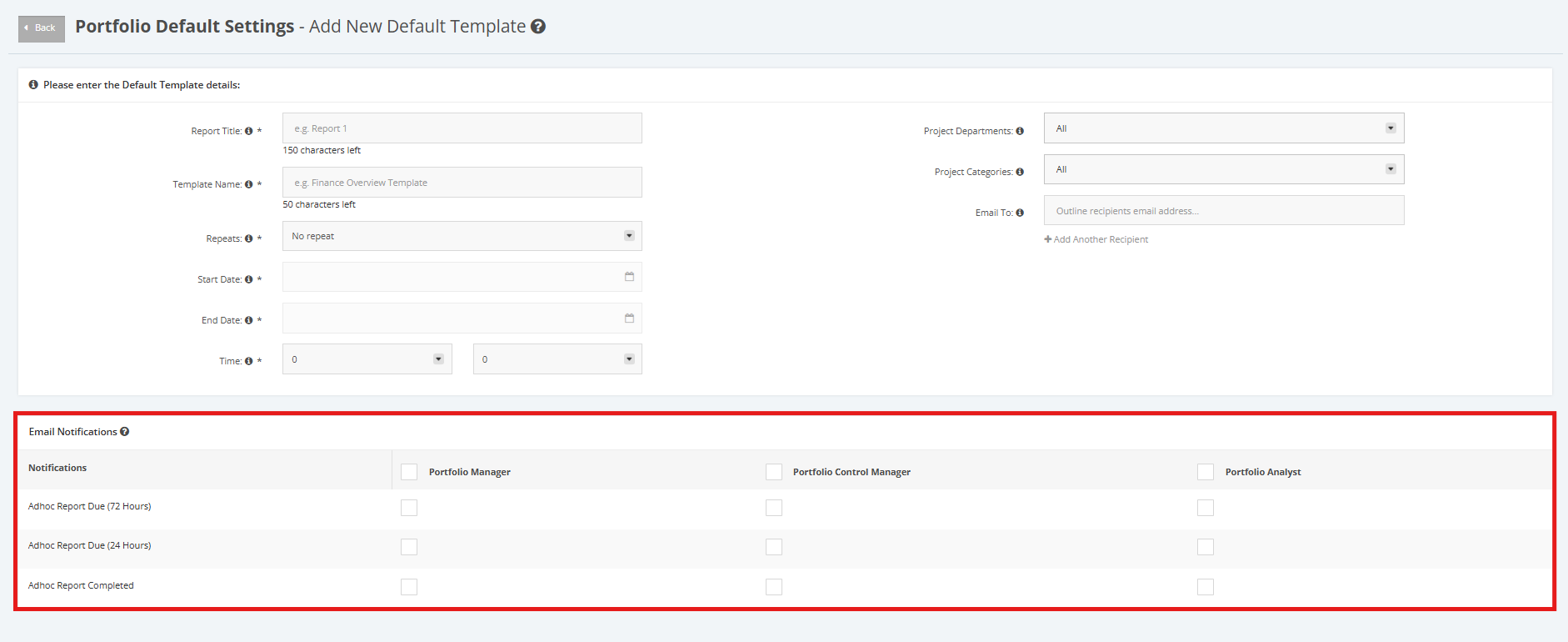
3. Once Template details are complete, scroll to the ‘Email Notifications’ section. Tick/untick checkboxes to enable/disable sending of Report Notifications (per Key Role).
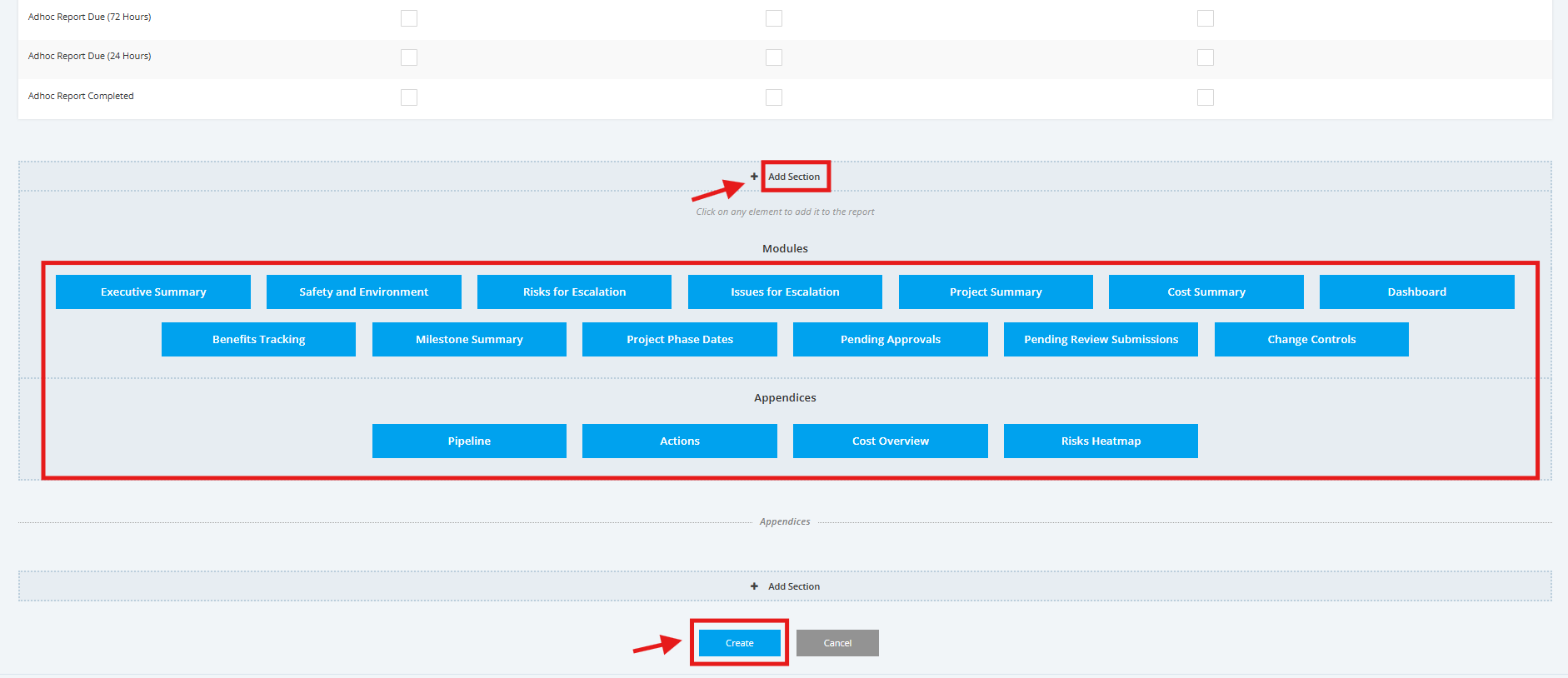
4. Add more elements in the Custom Report by clicking the ‘+ Add Section’ link. Once done, click the desired Module or Appendices. Rearrange Report sections to your desired sequence by moving the Drag and Drop ‘+’ icon.
Once complete, click the ‘Create’ button to save the template.