1. Add an Action, Decision Dependency, and Assumption in Portfolio Action Tracking
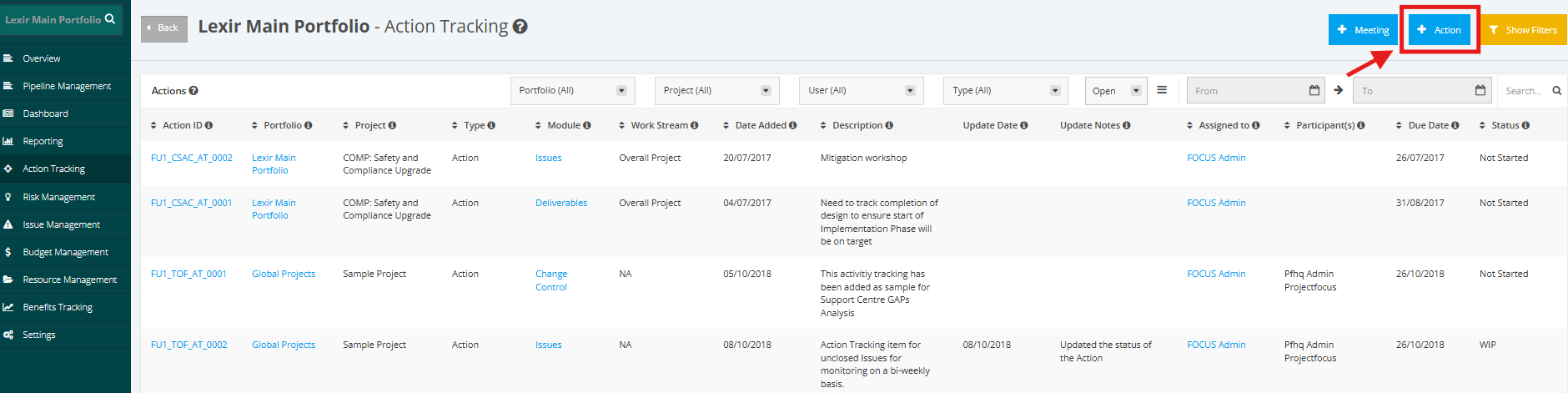
1. In the Portfolio Action Tracking page, click the + Action button in creating Action, Decision, Dependency, and Assumption.
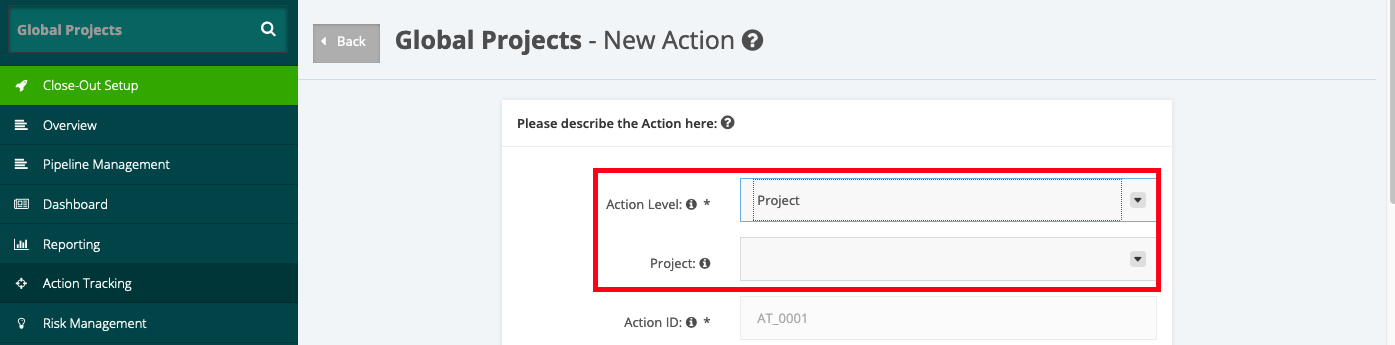
2. In the Action Level field, select Project or Portfolio from the drop-down menu.
Note:
- If you select Project from the drop-down menu, the Project field will be displayed.
- In the Project field, select a list of projects associated to the portfolio from the drop-down menu.
3. The Action ID and Date Added have default values already
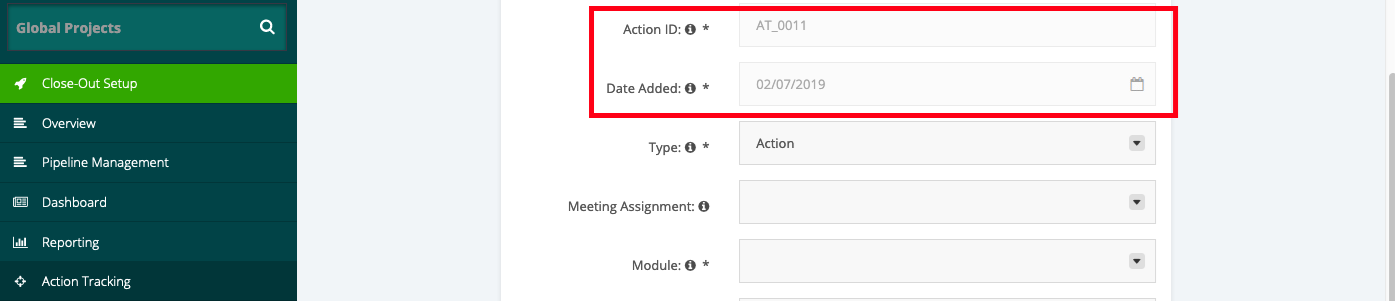
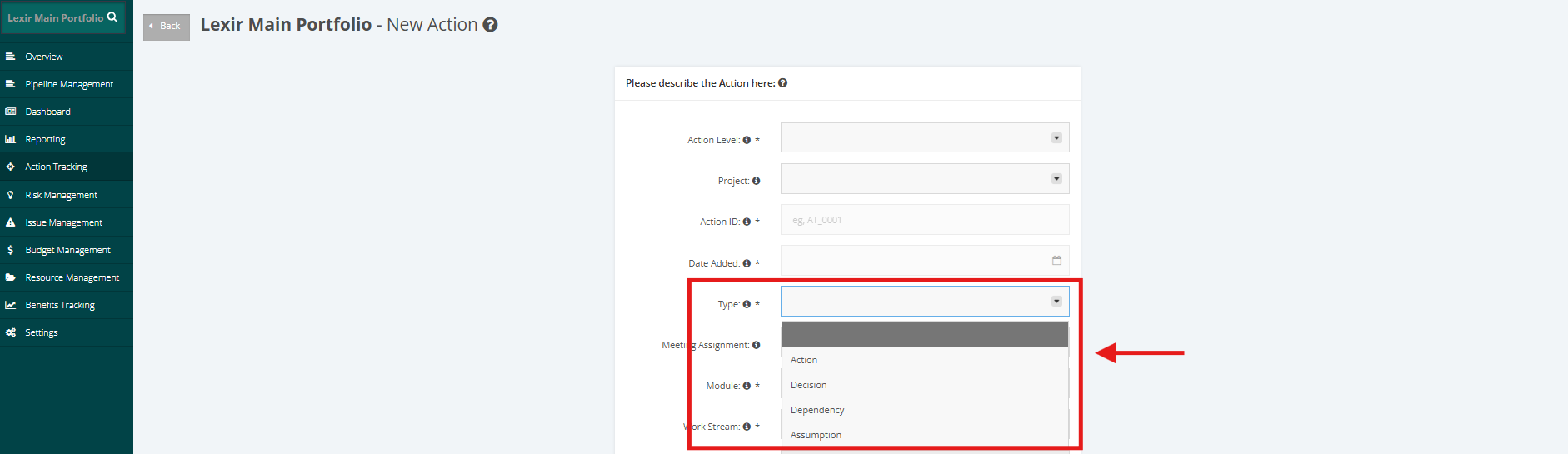
4. In the Type field, select Action, Decision, Dependency or Assumption from the drop-down menu.
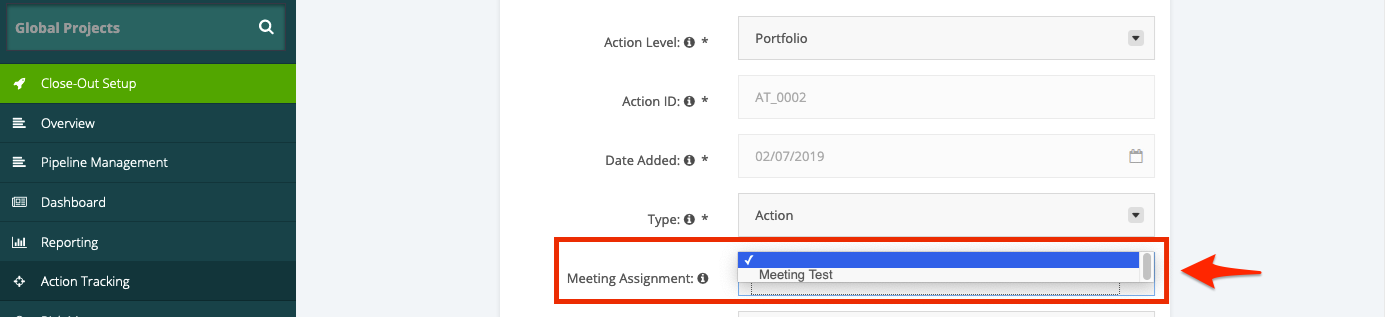
5. In the Meeting Assignment field, select an available meeting from the drop-down menu.
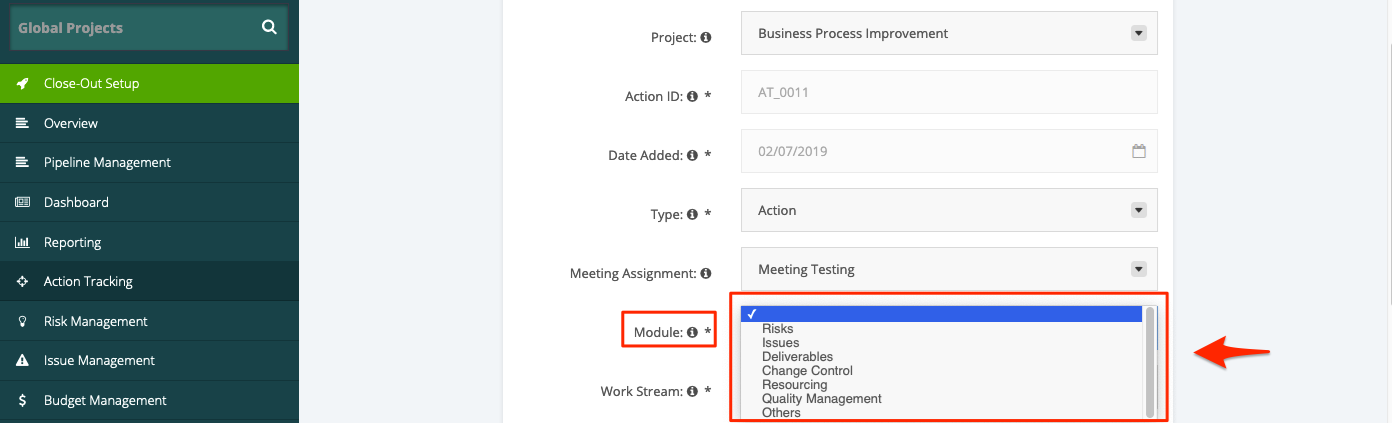
6. In the Module field, select which module below you would want to add the Action Tracking item.
FOR ACTION LEVEL= Project
- Risks – risks identified by the project
- Issues – issues identified in the project
- Deliverables – a specified function or characteristic of the project.
- Change Control – assessing a change to the project.
- Resourcing - staff member, contractor or employee that assists with the project.
- Quality Management – managed by a group of people with expertise, stakeholders or process owners pertaining to the project and has knowledge of not only the project but the business itself and all impacts in regards to the project.
FOR ACTION LEVEL= Portfolio
- Risks Management. – risks identified by the portfolio
- Issues Management – issues identified in the portfolio
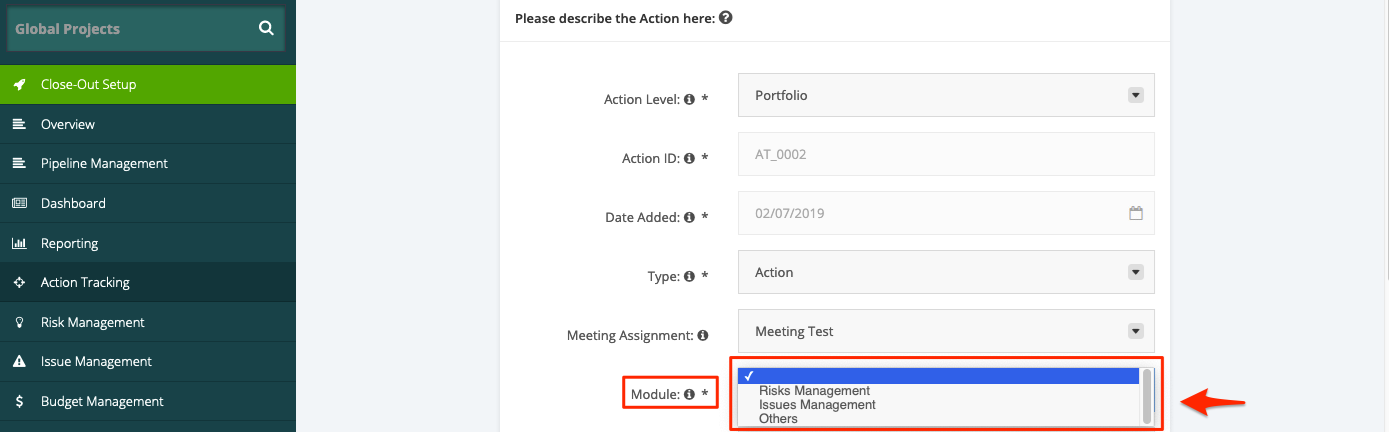
7. If the desired option is not in the drop-down menu, you may select Others and create your own entry item in the field provided.
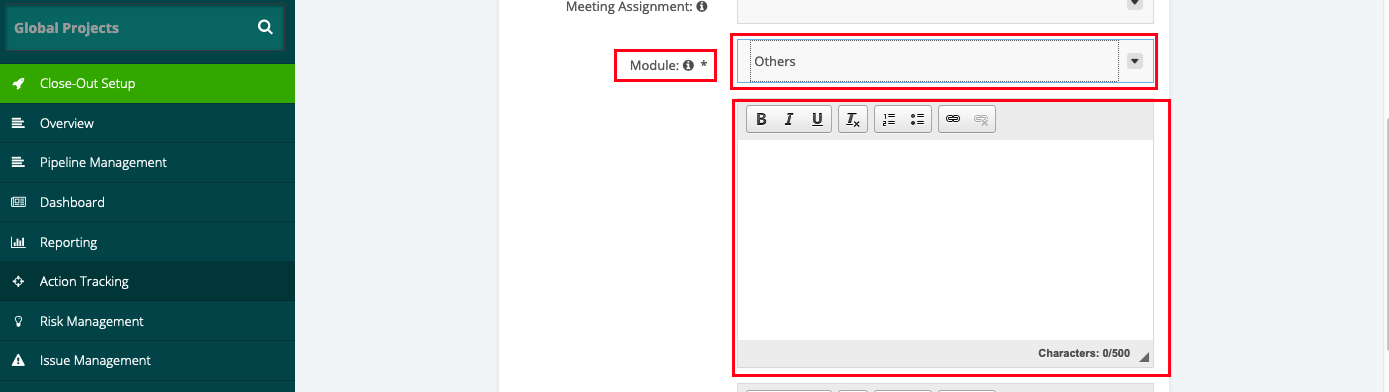
8. Select the Work Stream Drop down list (FOR Action Level= Project only)

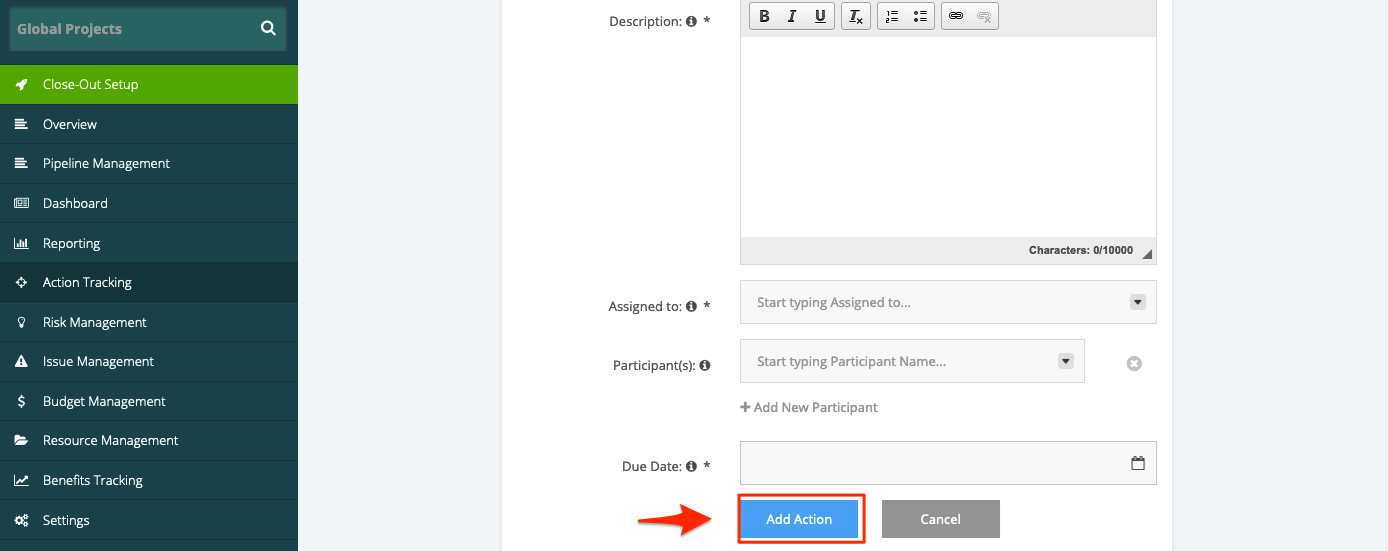
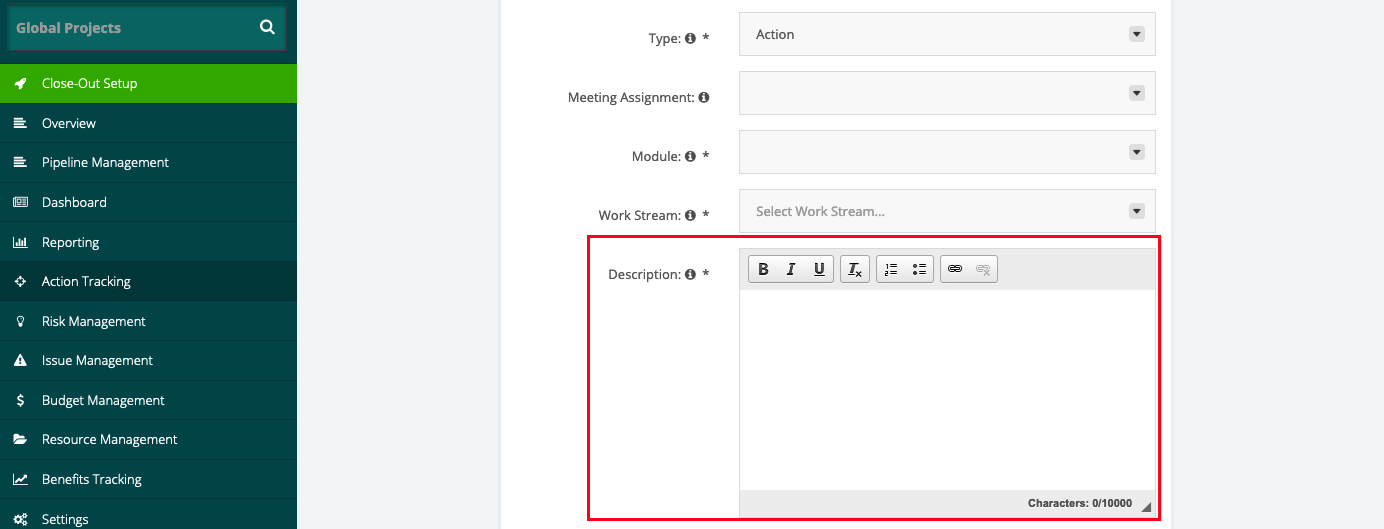
9. Add a Description for the Action Tracking item in the field provided.
(If Type selected is Decision, field name will become Decision.)
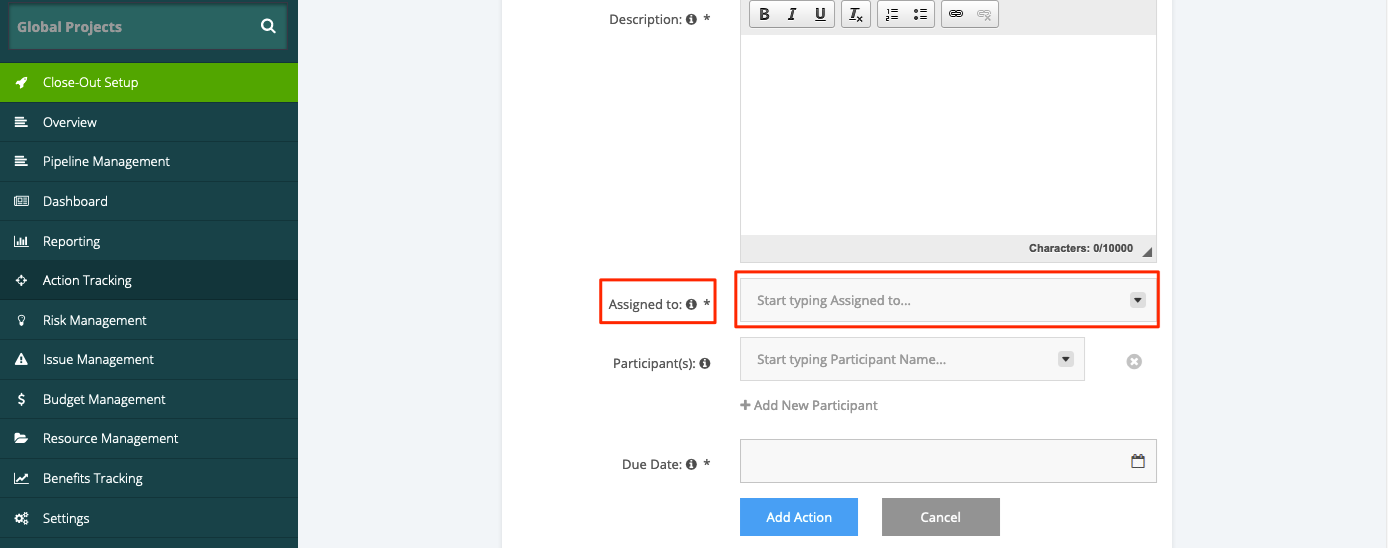
10. Add an assignee for the Action Tracking item in the ‘Assigned to’ data field from the drop-down list.
(If Type selected is Decision, field name will become Decision Owner.)
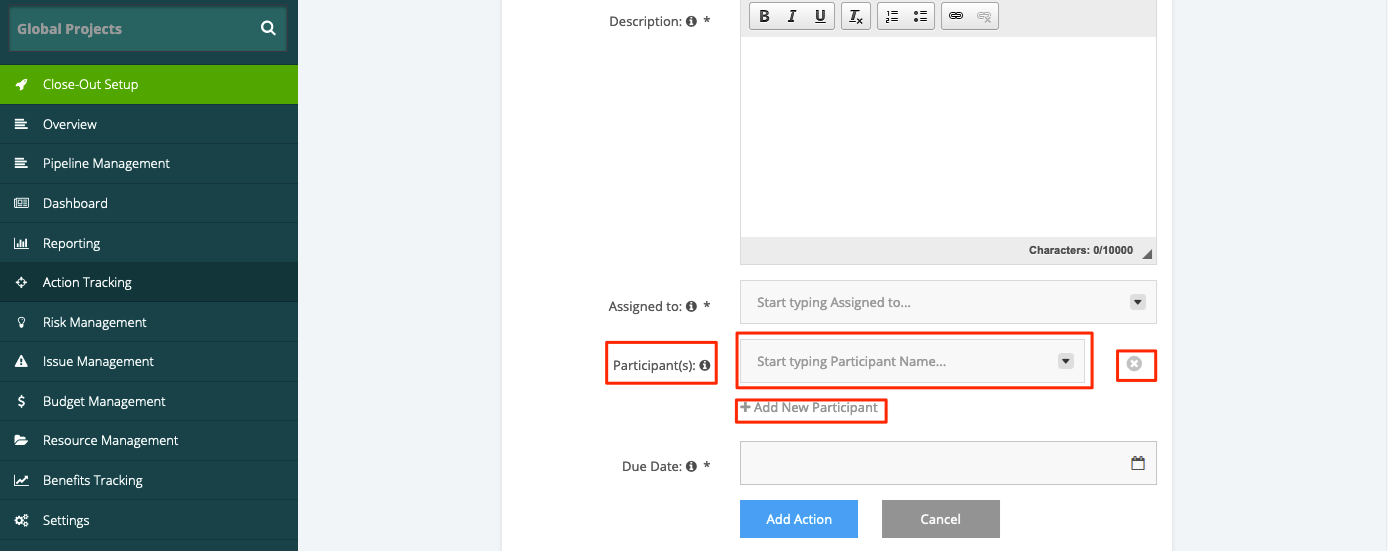
11. Add a Participant(s). You can add two or more participants by selecting +Add New Participant. You can also remove a participant by selecting the x button. Adding a participant is not mandatory and it is okay to stay as blank.
(If Type selected is Decision, field name will become Decision Maker(s).)
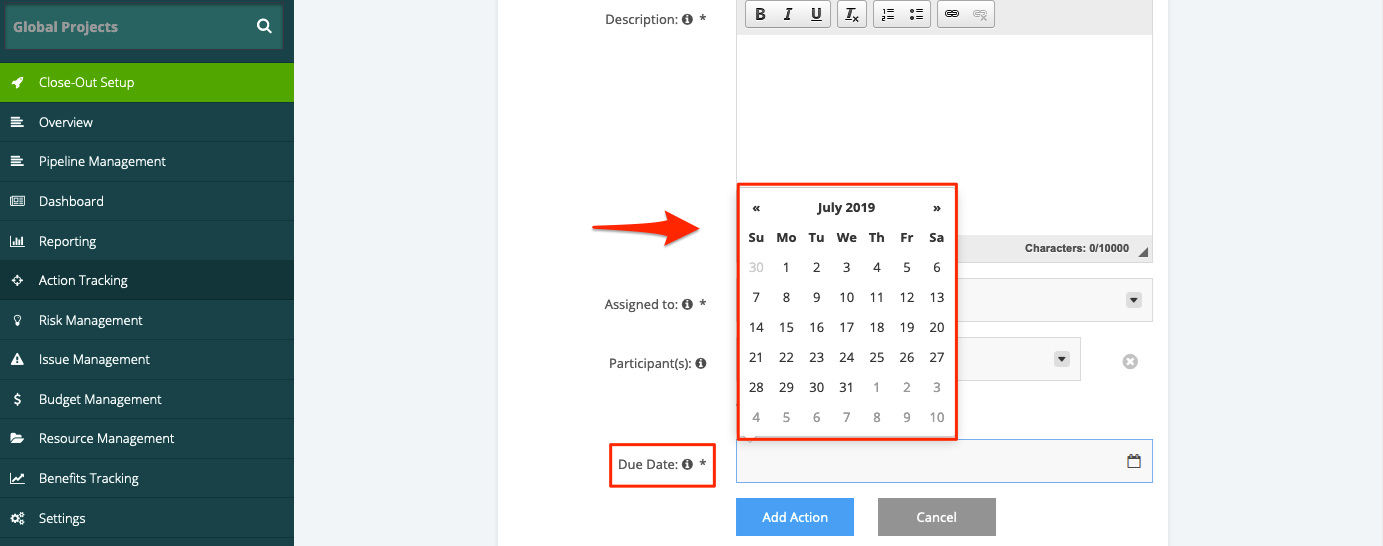
12. Select the Due Date of the Action Tracking item by clicking the calendar icon and selecting the date from the pop-up calendar menu.
13. Once all the required information has been provided for Action, Decision, Dependency or Assumption, click the Add Action button. The Action Tracking item is now added under the Actions section.