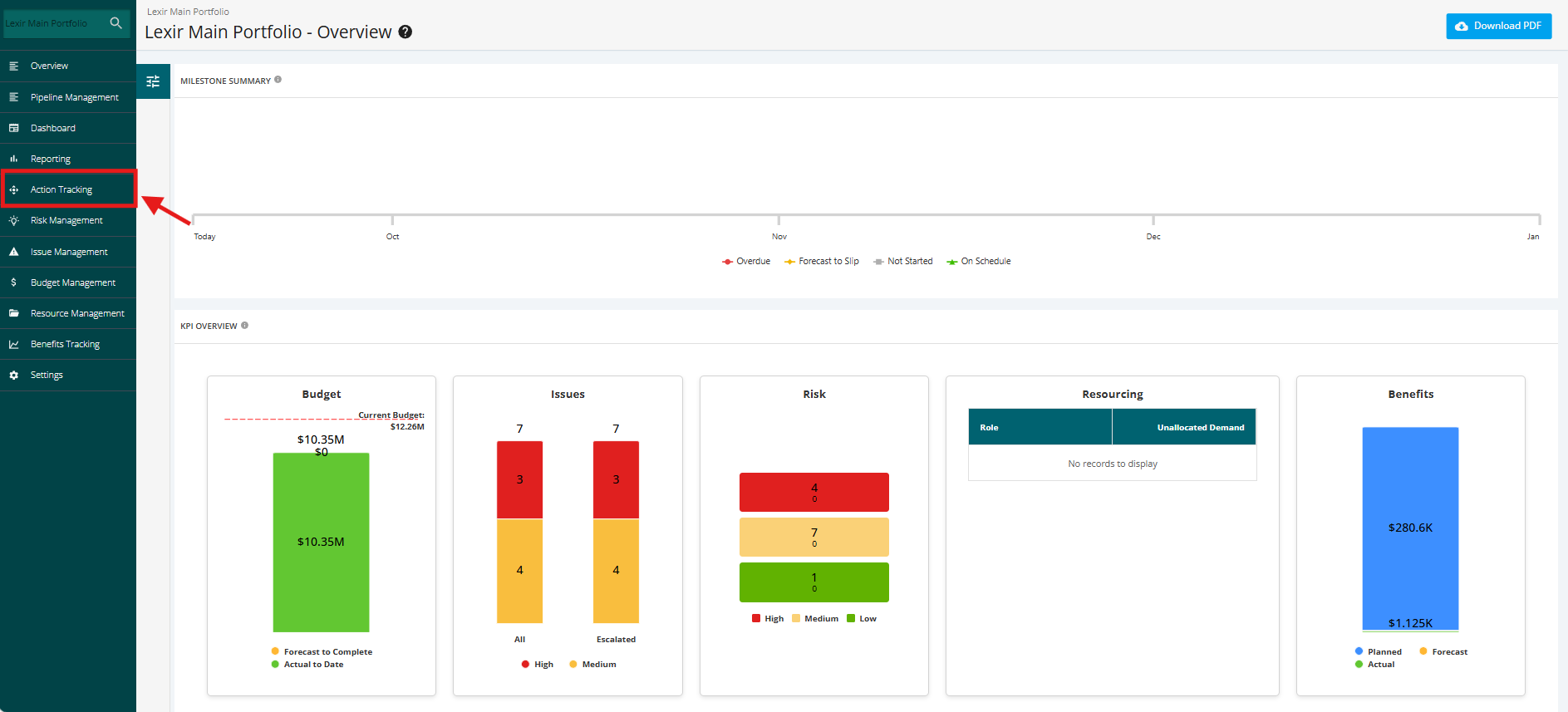
1. Navigate Portfolio Action Tracking
- To navigate to the Portfolio's Action Tracking page, open the FOCUS™ platform using the link: https://app.projectfocushq.com/accounts/login/
- Login using your ‘Username’ and ‘Password’ and click the ‘Log-in’ button.
- Once logged in you will reach your Company’s Homepage, within the ‘Tiles’, navigate to the ‘Portfolio Dashboard’ by clicking the ‘My Portfolios’ tile or ‘Portfolios’ from the Main Navigation.
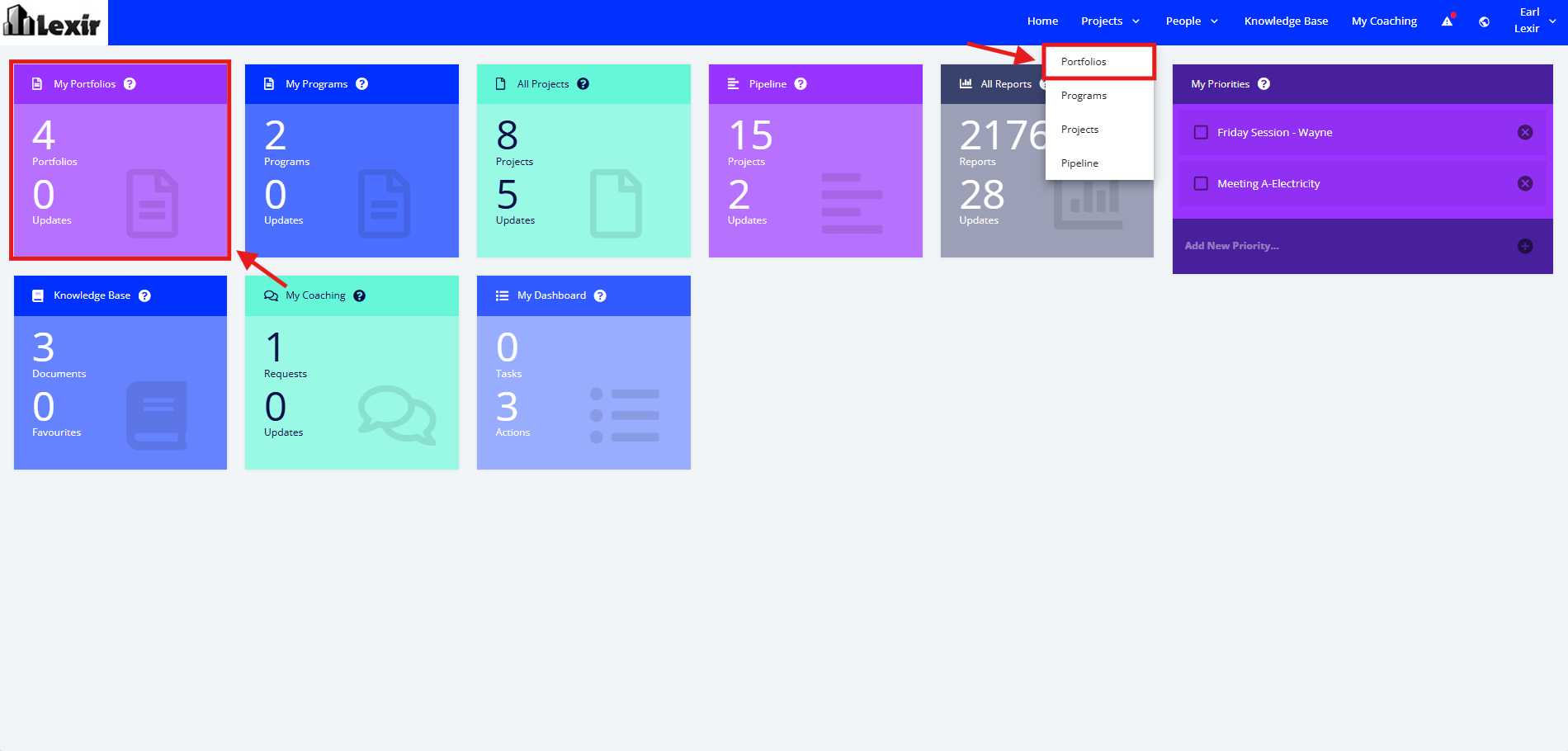
- In the ‘Portfolio Dashboard’ section, click the ‘Name’ of the ‘Portfolio' that you want to manage.
Note: In this section you can only see the Portfolio assigned to you unless the administrator has provided you a Company Access Level to all Portfolios.

- Once a Portfolio is selected, go to the left sidebar and click on ‘Action Tracking’.