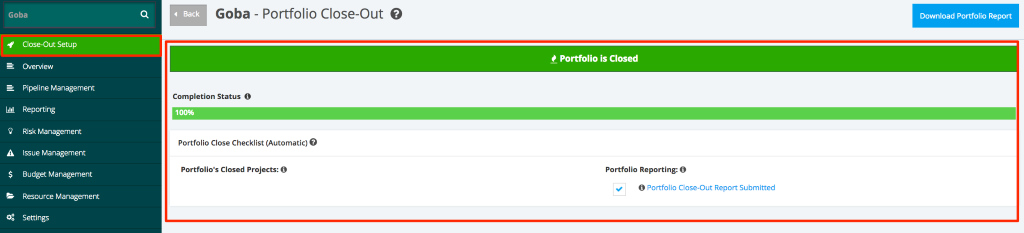
1. How to Close a Portfolio
- To manage Close Out of a 'Portfolio', open the FOCUS™ platform using the link: https://app.projectfocushq.com/accounts/login/
- Login using your ‘Username’ and ‘Password’ and click the ‘Log-in’ button.
- Once logged in you will reach your Company’s Homepage, within the ‘Tiles’, navigate to the ‘Portfolio Dashboard’ by clicking the ‘My Portfolios’ tile or ‘Portfolios’ from the Main Navigation.
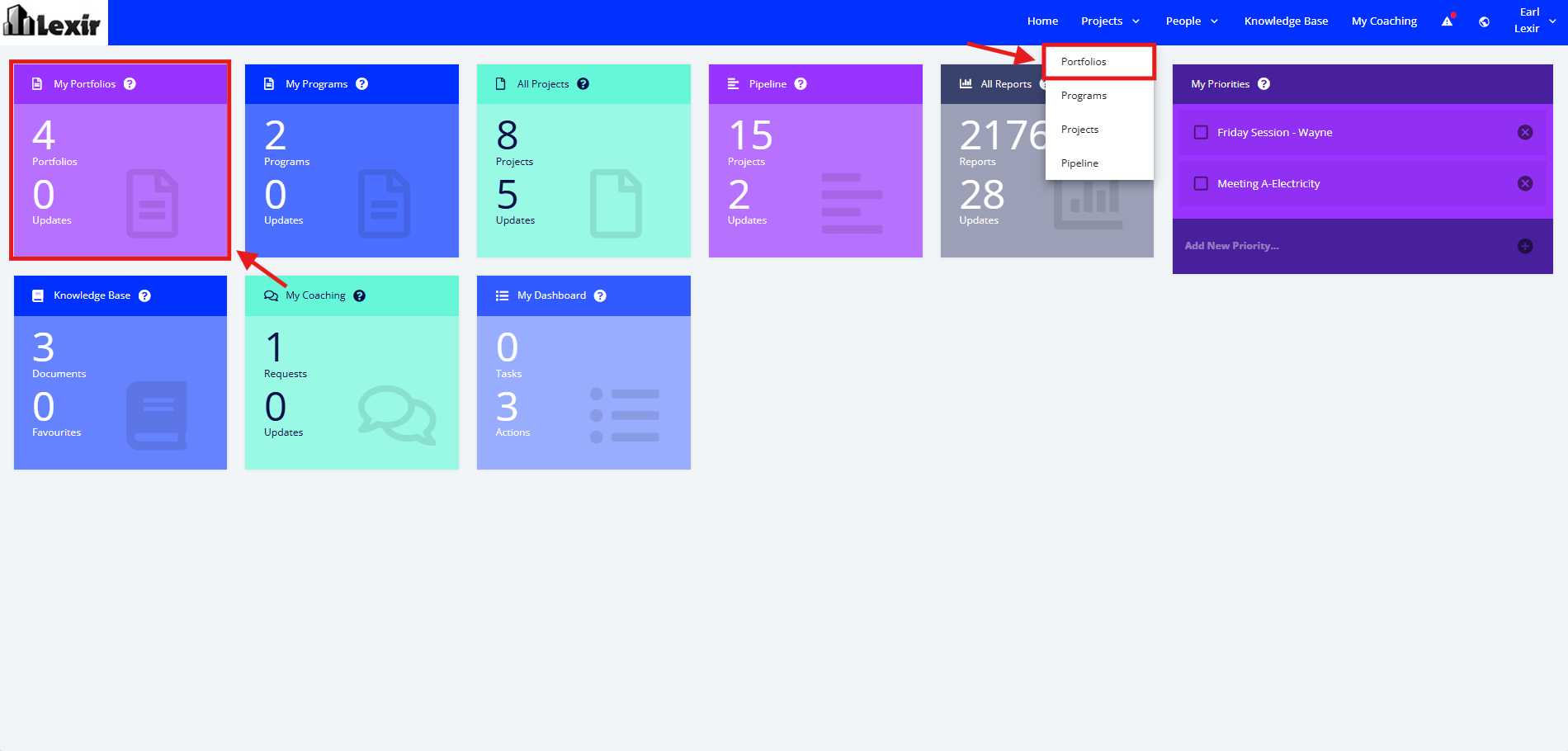
- In the ‘Portfolio Dashboard’ section, click the ‘Name’ of the ‘Portfolio' that you want to manage.
Note: In this section you can only see the Portfolio assigned to you unless the administrator has provided you a Company Access Level to all Portfolios.

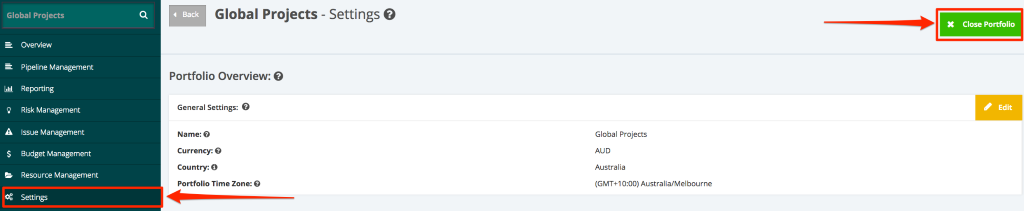
1. Navigate the Portfolio ‘Settings’ tab located in the left side bar of the page. Once done, click the ‘x Close Portfolio’ button located at the upper right corner of the page.
2. To successfully close a Portfolio, make sure that all of the ‘Portfolio Close Checklist (Automatic)’ and the ‘Portfolio Reporting Checklists’ are 100% completed. The checklist helps ensure that everything is properly met and meets PM/company standards before officially closed out.
If there are items not resolved, the PM needs to resolve prior to closing the portfolio.
Portfolio close-out occurs only when all criteria are met and nothing outstanding is left including:
- There are no currently open projects
- There are no scheduled pipeline projects
- There are no future external activities
- All Portfolio OPEX planned periods have actuals
- Stakeholders and managers all approve the portfolio closure
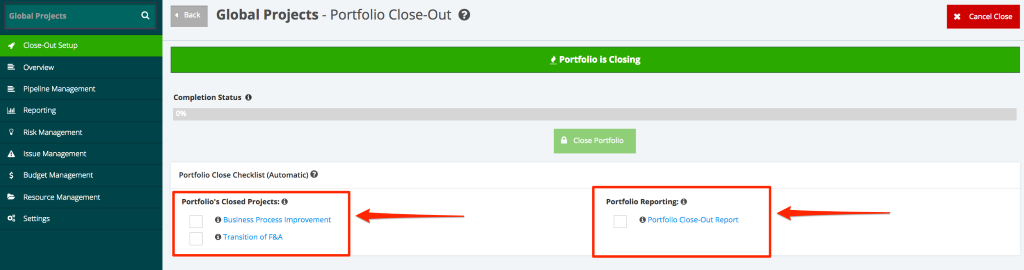
3. Below is a sample Portfolio Close-Out Setup.