1. Add a Pipeline Black Out Period
Black Out: All the non-working days that are within the timeline. Blackout dates can be caused by necessary people being unavailable, technology delays (waiting for uploads), scheduled downtime, holidays, or project conflicts.
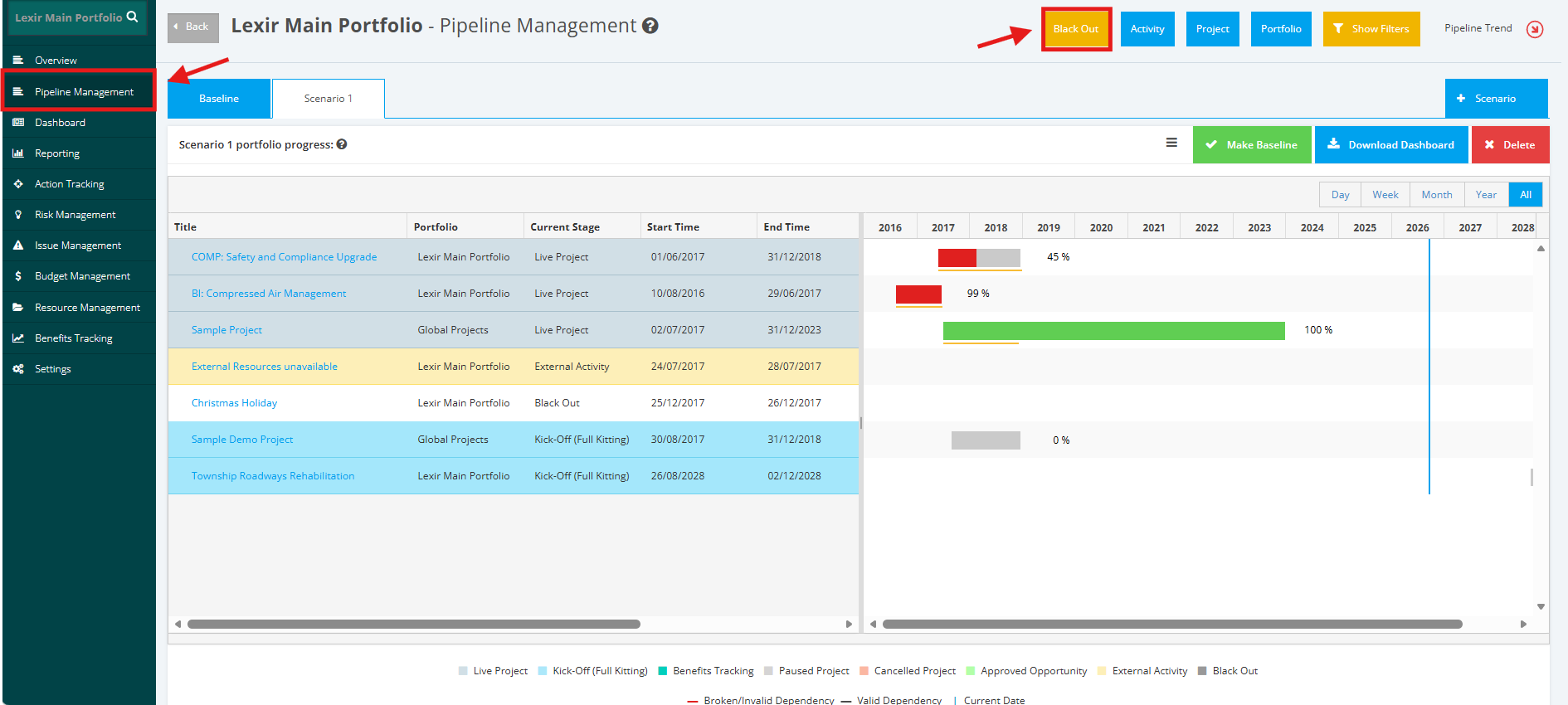
1. To add a ‘Black Out Period’ within a Portfolio, navigate to the ‘Pipeline’ page by clicking the ‘Pipeline Management’ tab from the left side bar. Once done, click the ‘+ Black Out’ button as shown below.
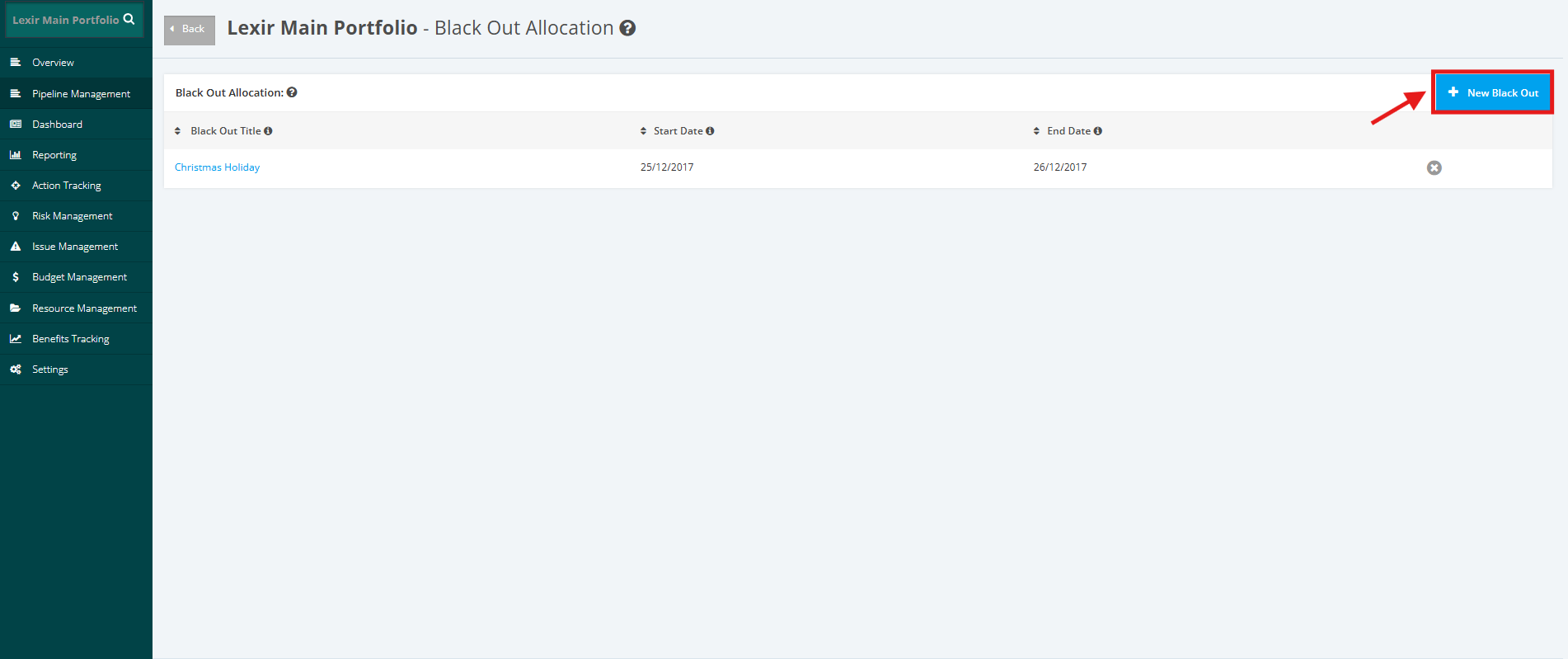
2. The Black Out Allocation table list is displayed. Click the ‘New Black Out’ button on the top right corner.
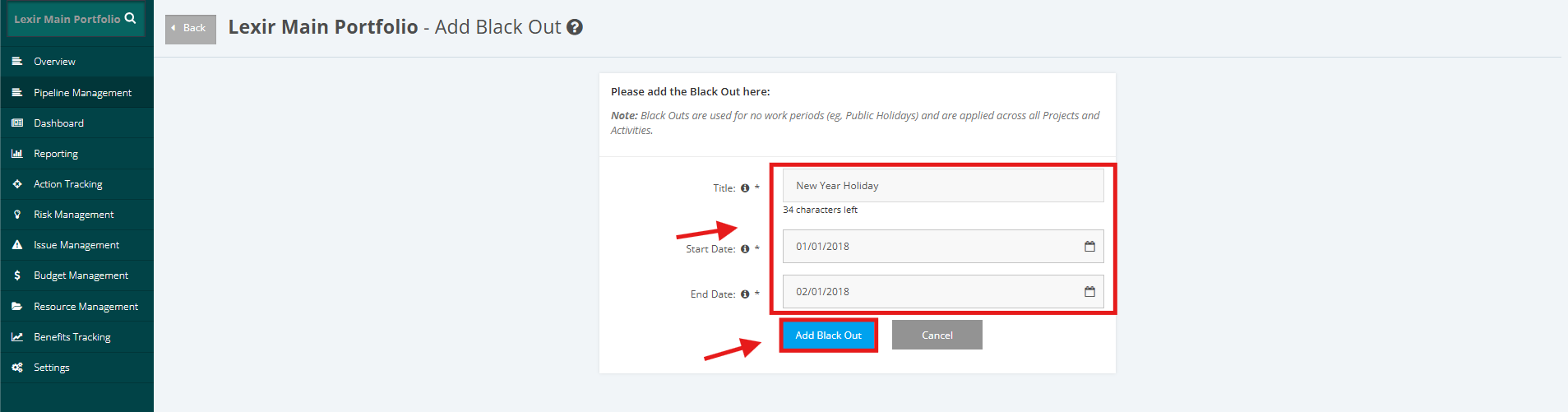
3. Fill in the ‘Title’, ‘Start Date’ and ‘End Date’ of the Black Out. Once complete, click the ‘Add Black Out’ button.
Note: Black Outs are used for no work periods (E.g. Christmas Holidays) and are applied across all Projects and Activities.
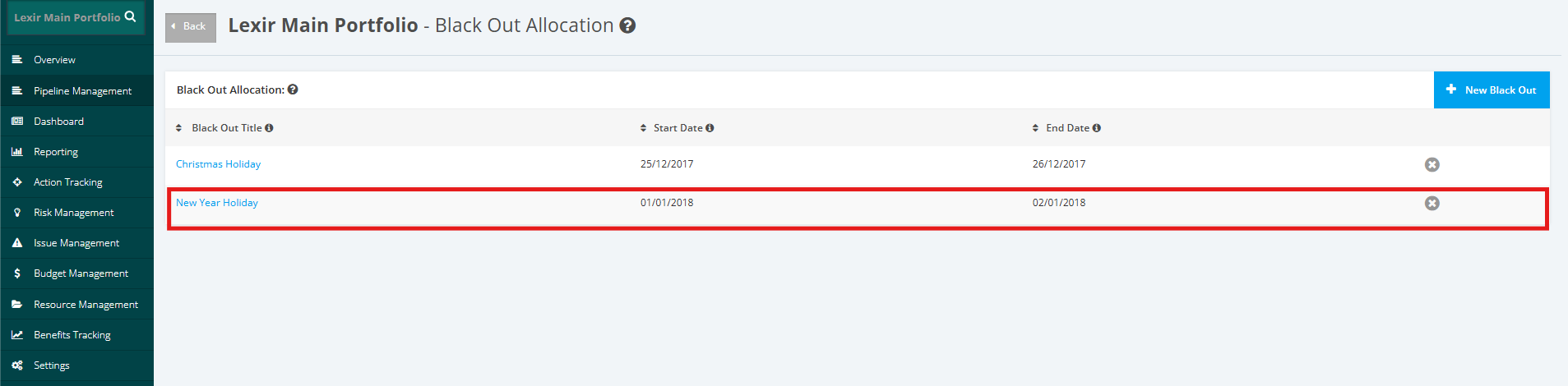
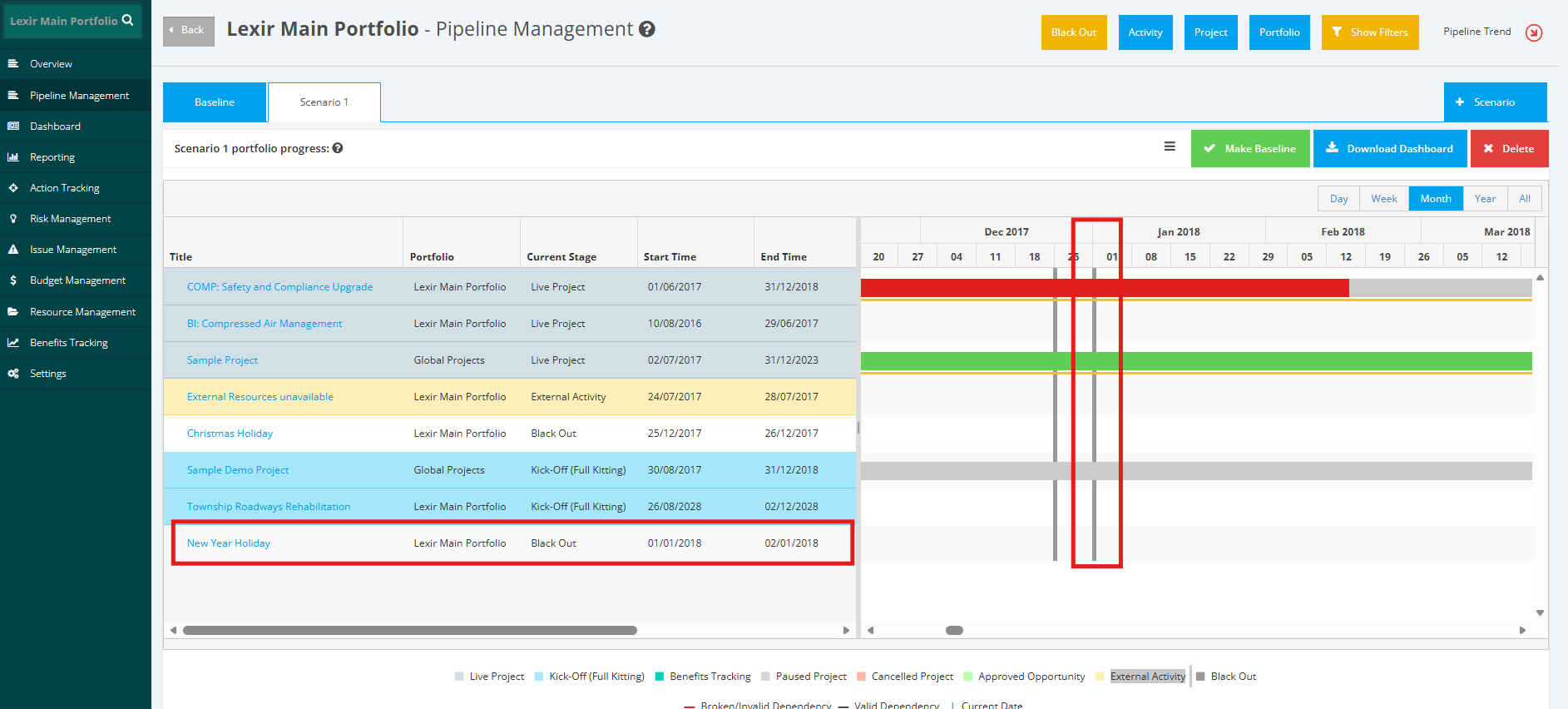
4. The Black Out is now added in the Portfolio.
It is added both in the Black Out Allocation Table and in the Baseline Portfolio Progress Chart.