1. Send Change Control Actions Details via Email
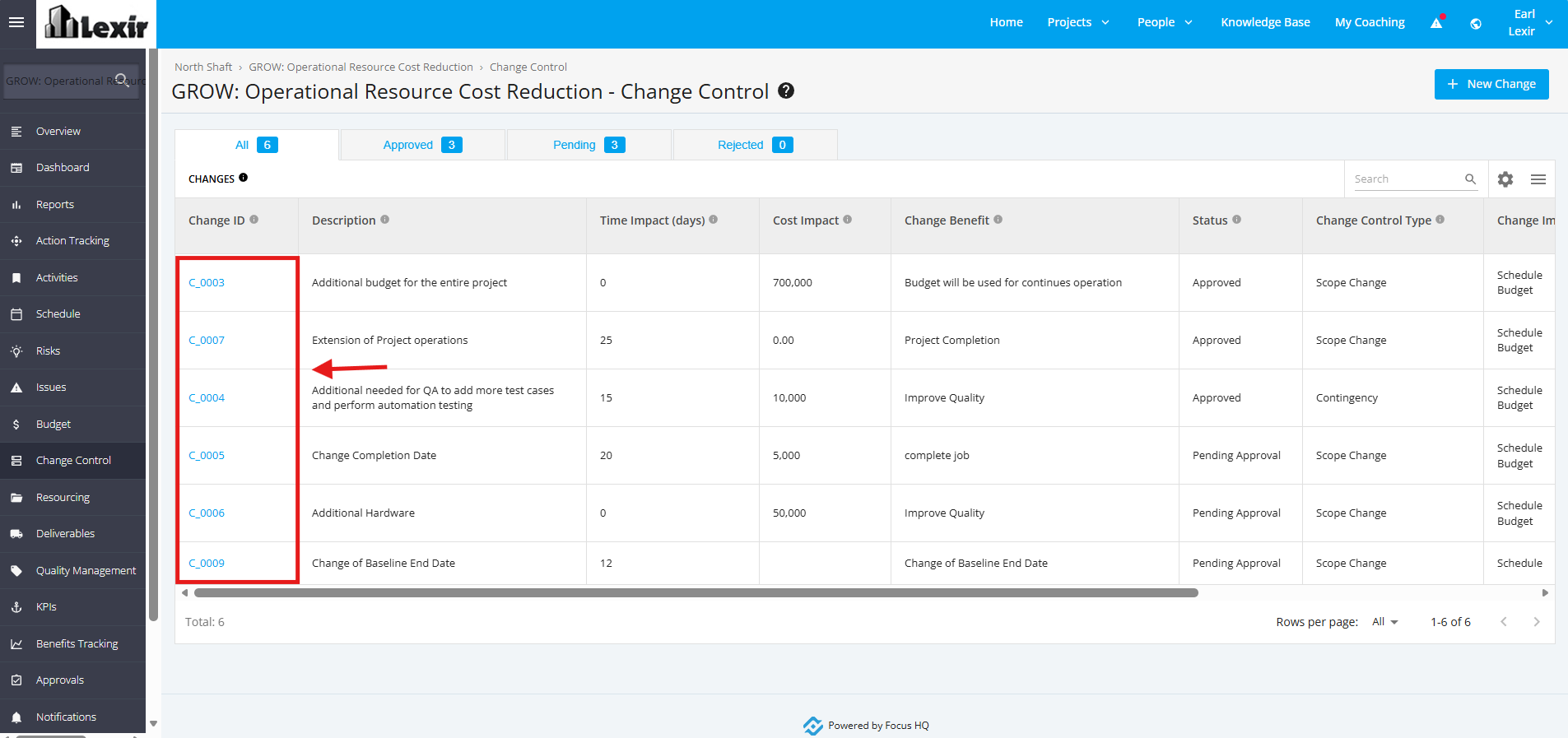
1. Once a project is selected, click the ‘Change Control’ tab from the left sidebar of the page and then click any Pending/ Approved ‘Change Control’.
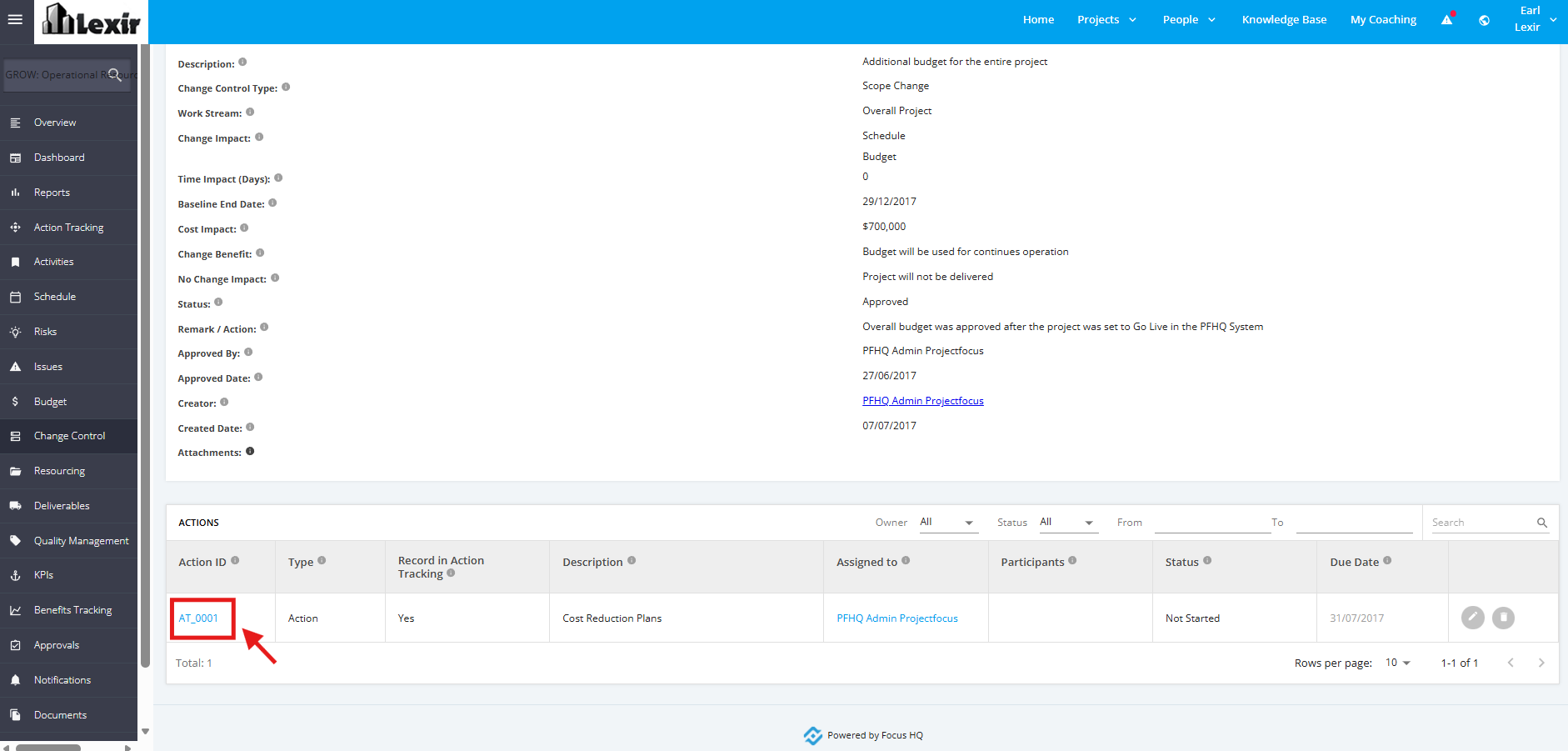
2. Once redirected to the ‘Change Details’ page, scroll down to the ‘Actions’ section and click the ‘Action Item’.
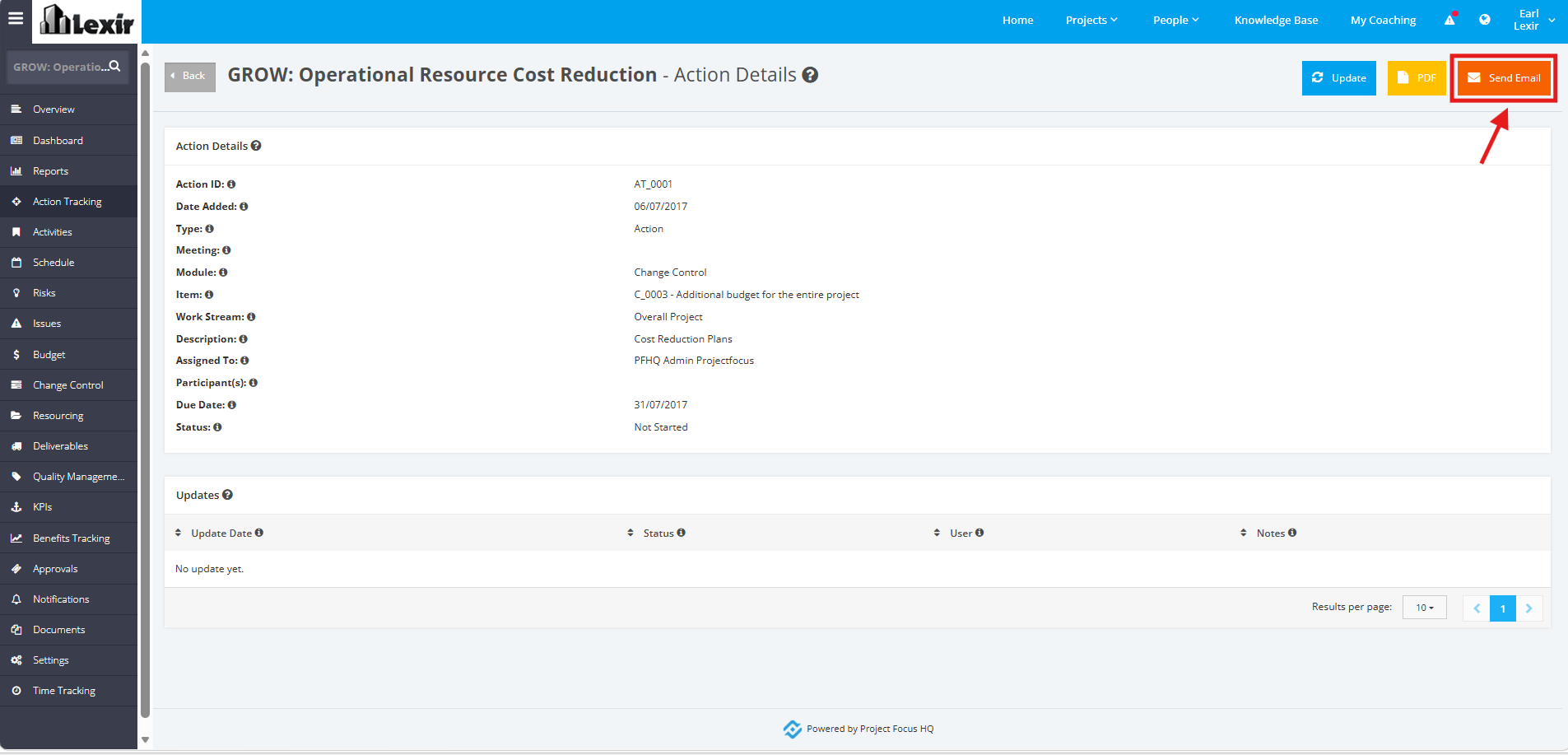
3. Click the ‘Send Email’ button within the Change Control Action Details page.
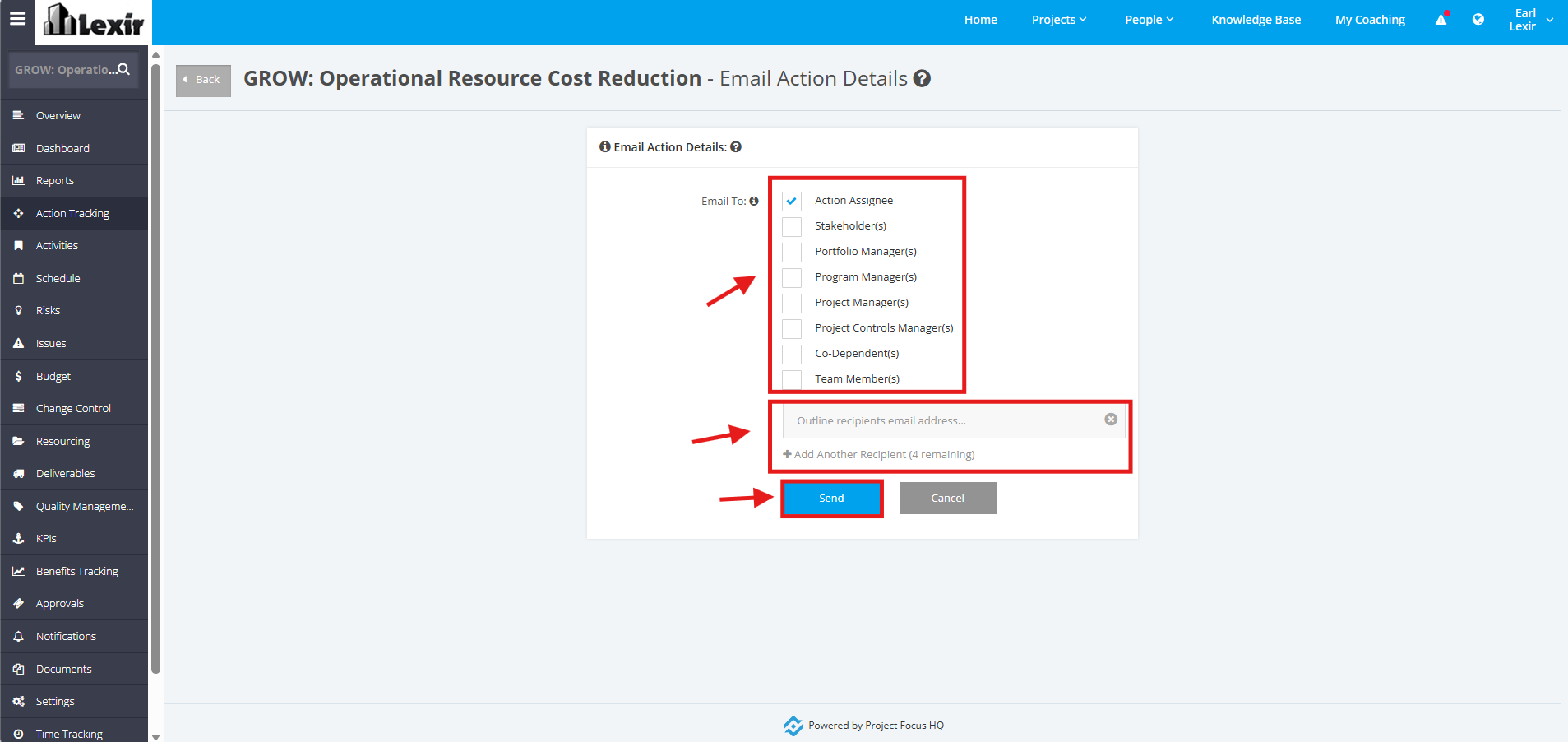
4. Tick the checkbox of the recipients that you want to email the Change Control action item to.
You can also add an email address of a recipient for the Action items if there are external recipients outside the project.
To add more recipients, click +Add Another Recipient. You can only add up to 4 email addresses.
Once done, click the Send button.