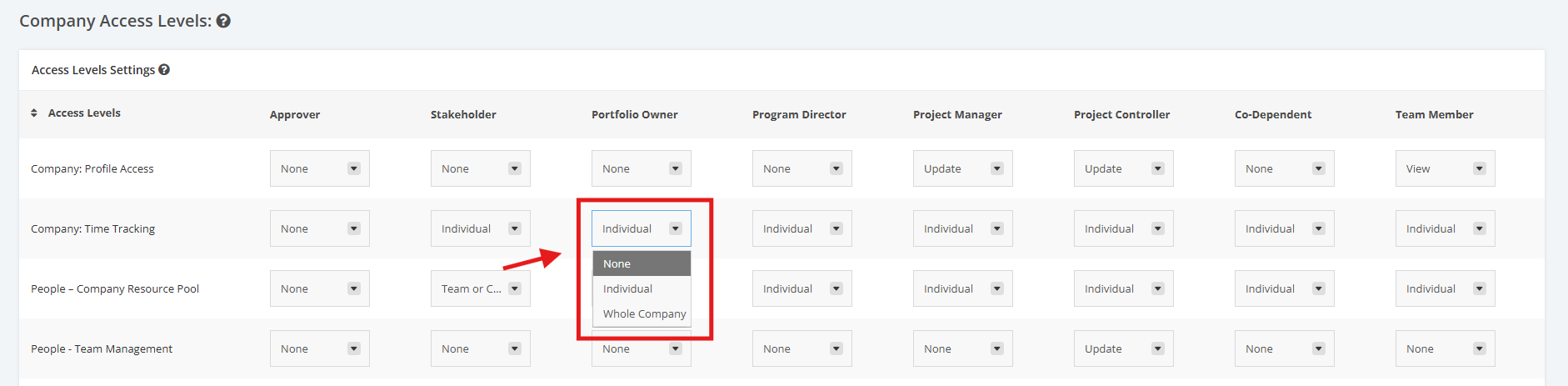
1. Manage Company Access Levels
- To manage Company Access Levels in the Company Profile Settings, open the FOCUS™ platform using this link: https://app.projectfocushq.com/accounts/login/.
- Login using your ‘Username’ and ‘Password’ and click the ‘Log-in’ button.
- Once logged in you will reach the Company’s Homepage. Go to the Top Navigation, hover over your ‘Company Name’ then click on the ‘Edit’ icon as shown below. Once done, you will reach the Company Profile.
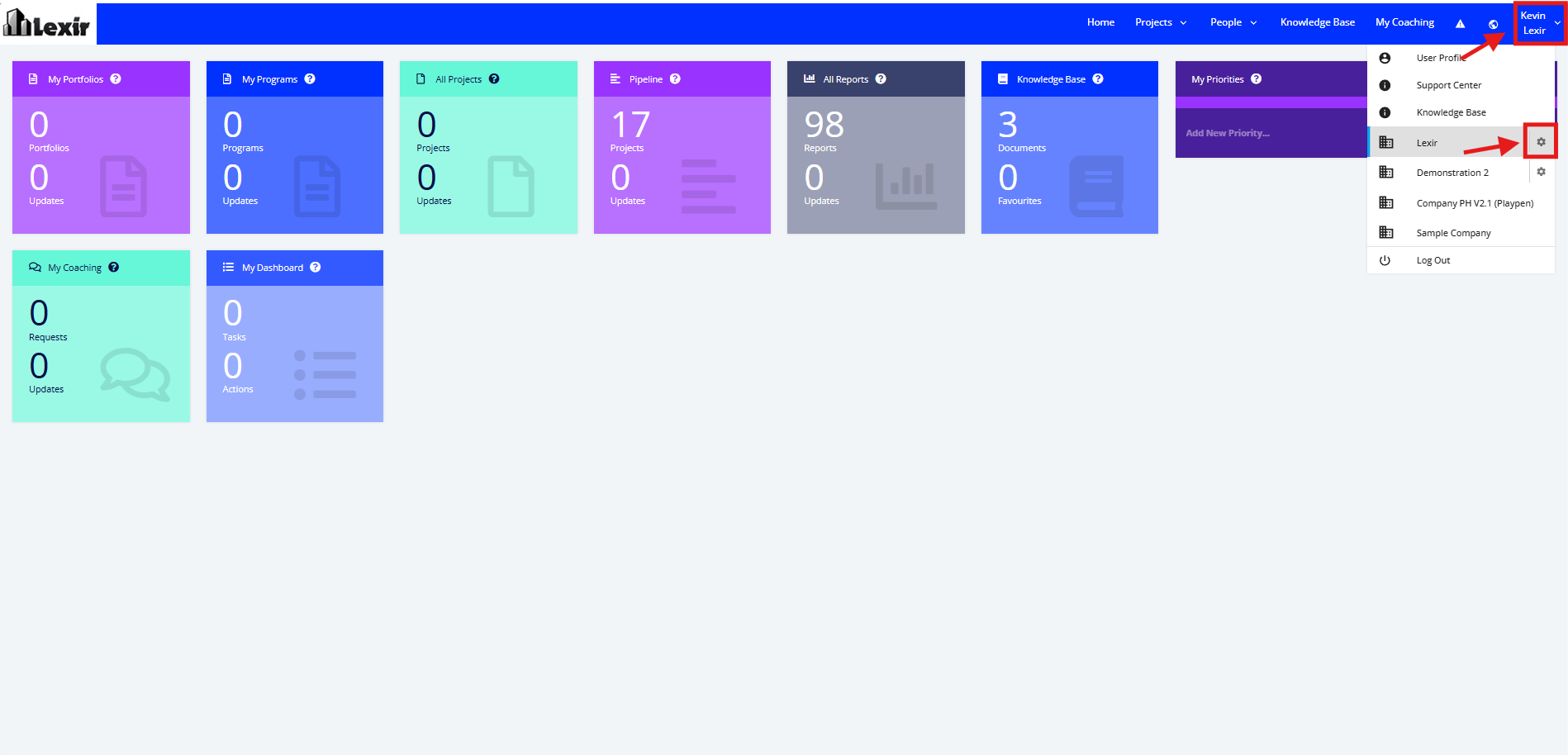
Note: Only Users with access to the Company Profile can edit this page.
1. Within the ‘Company Profile’, navigate to the ‘Company Access Levels’ section. This is the section where you can manage the Access Levels of each User Role, this is to remove confusion as to who can approve or do what at a company level.
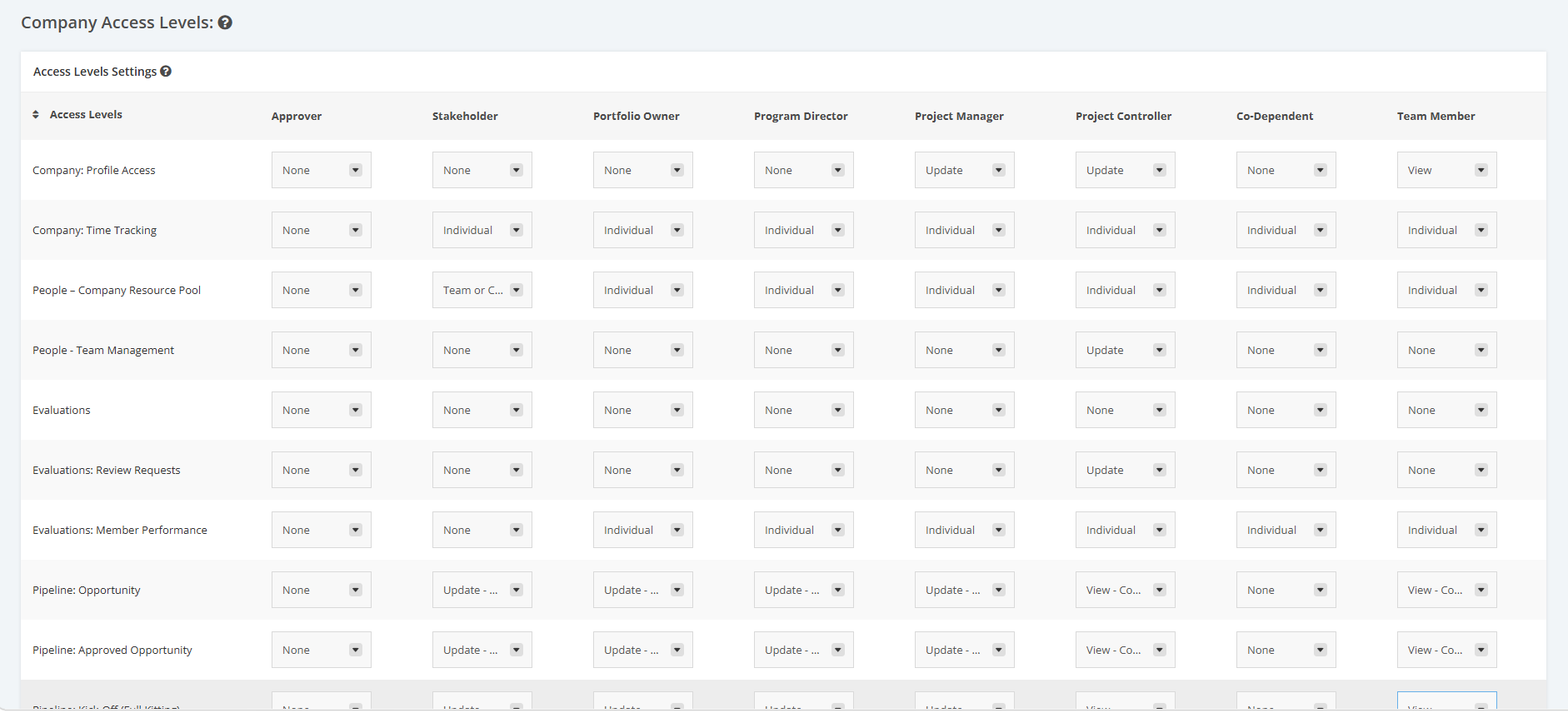
2. Once you have reached the ‘Company Access Levels’ section, click the dropdown menu to assign a ‘Company User Role’ with their corresponding access rights to various sections.
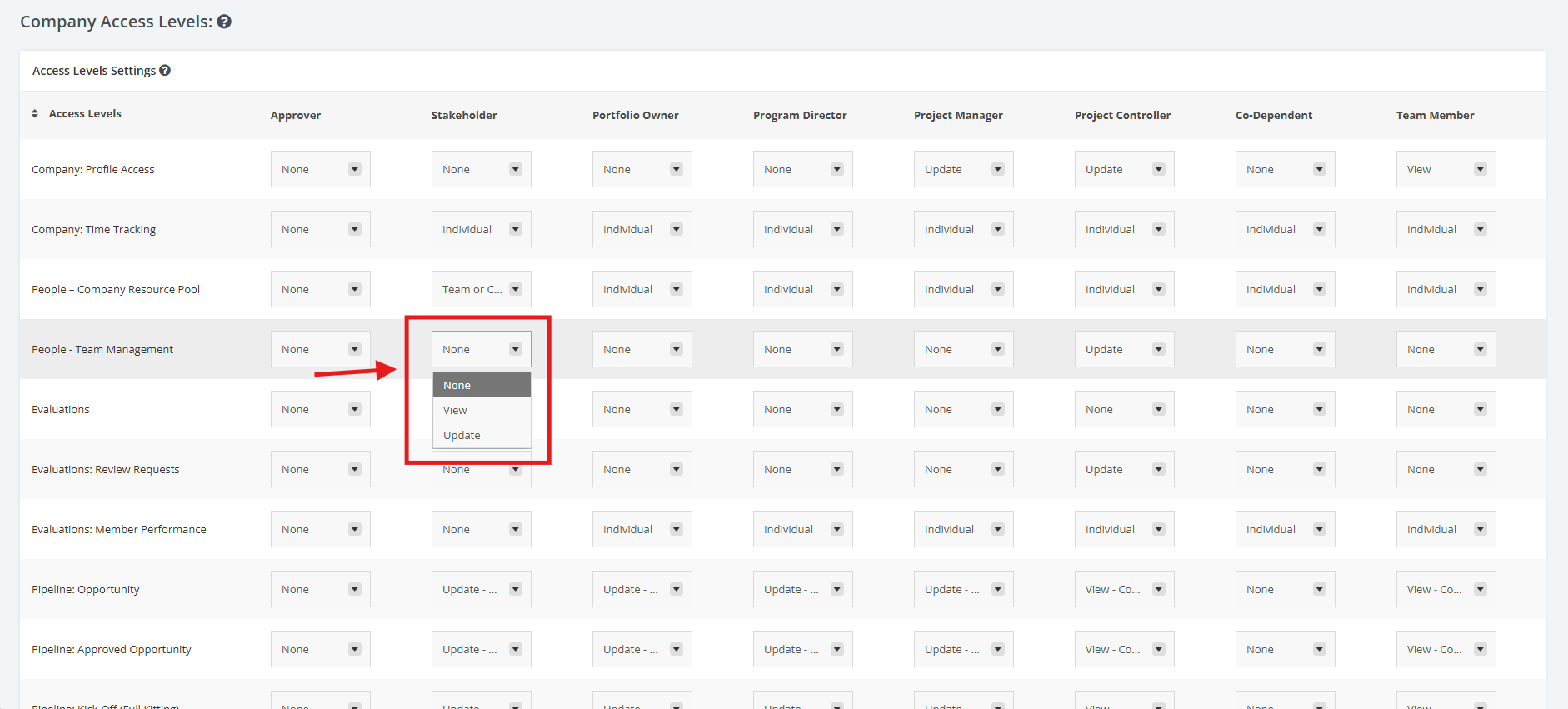
- ‘Update’ – a User Role can view and make any changes to various sections
- ‘View’ – a User Role can only view the sections assigned
- ‘None’ – a User Role can’t view or update any sections
The options above are only applicable to these Sections:
- Company: Profile Access
- People – Team Management
- Evaluations
- Evaluations: Review Request
- Evaluations: Member Performance
- Pipeline: New Opportunity
- Pipeline: Approved Opportunity
- Pipeline: Kick-Off (Full Kitting)
- My Coaching
- Knowledge Base
- Portfolios
- Programs
- Projects
E.g. Stakeholder can ‘Update’ the ‘People: Team Management’. Please refer to the screenshot below.
3. Some Access Levels like ‘Company: Time Tracking’, ‘People – Company Resource Pool’, ‘Evaluations: Member Performance’ have different data in their dropdown menu:
- ‘Whole Company’ or ‘Company’ or ‘Team or Company’ – User Roles can view or update various sections at a company level.
- ‘Individual’ – User role can only view their own.
- ‘None’ – User Role can’t view or update any sections.